Source: https://atomic-works-test.docs-staging.pageloop.ai/data-library/access/dashboard-actions/perform-access-review-for-a-critical-system
# Perform Access Review For A Critical System
# Perform Access Review for a Critical System
he following guide will help you perform user access reviews for a critical system.
From the security compliance standpoint, periodic user access reviews for critical systems are essential to ensure that only the required staff can access them. Refer to the[ access review](https://sprinto.freshdesk.com/support/solutions/articles/72000605751-how-to-manage-access-control-on-sprinto-) to learn more.
### Before You Begin
* Log in to the Sprinto admin portal.
* Ensure you are assigned as a critical system owner to perform an access review. By default, the InfoSec officer is designated as the system owner.
### Users Access Review for Critical System
Follow these steps to review users' access:
* From the Sprinto admin portal, navigate to **Data Library** > **Access** > **Overview**, and select the critical system you intend to review.
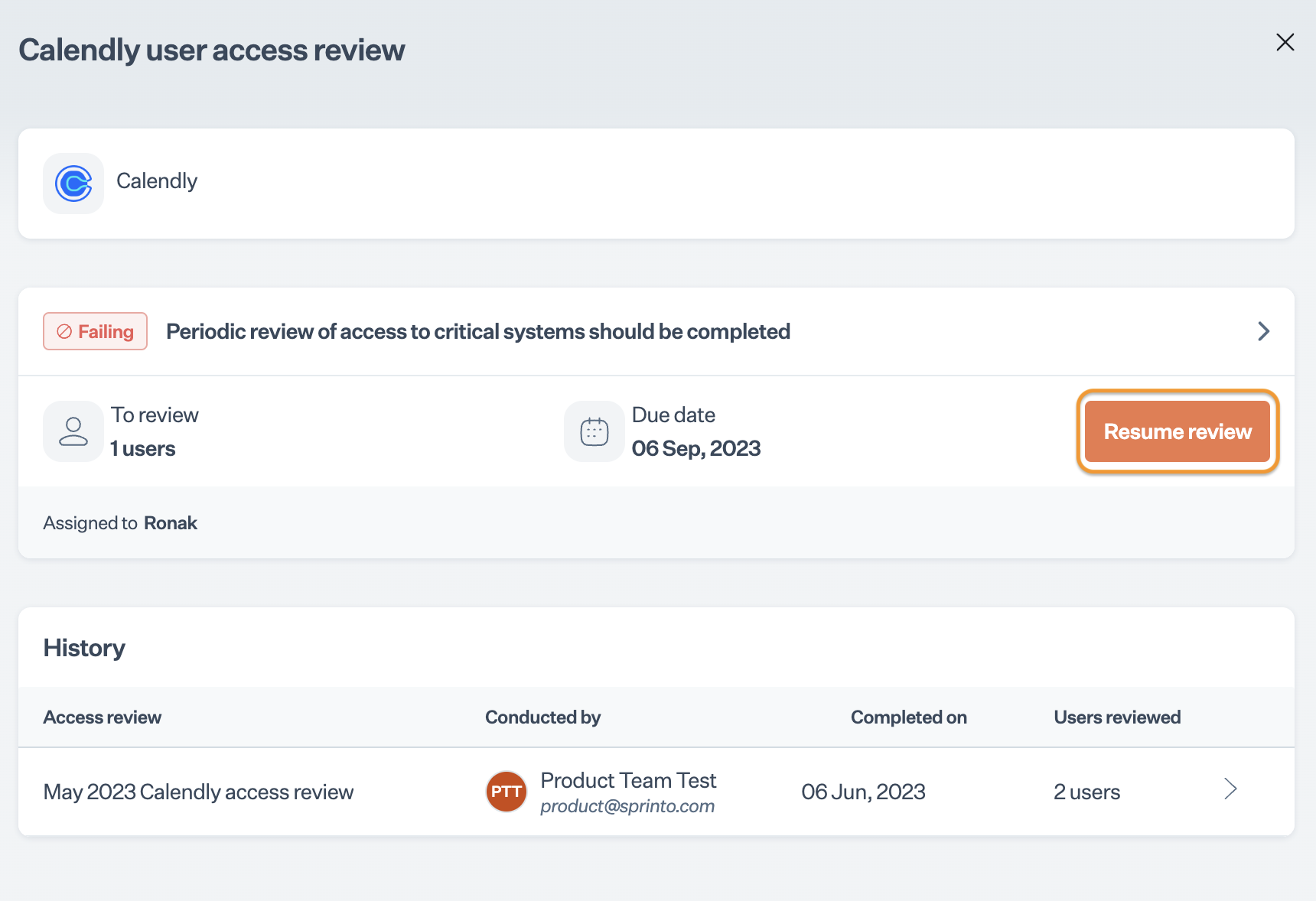
* Click on the Access Review tab and select the sprinto check "{Service provider} - access review".
* On the User Access Review page, click Start review or **Resume review** depending on the last performed review's status.
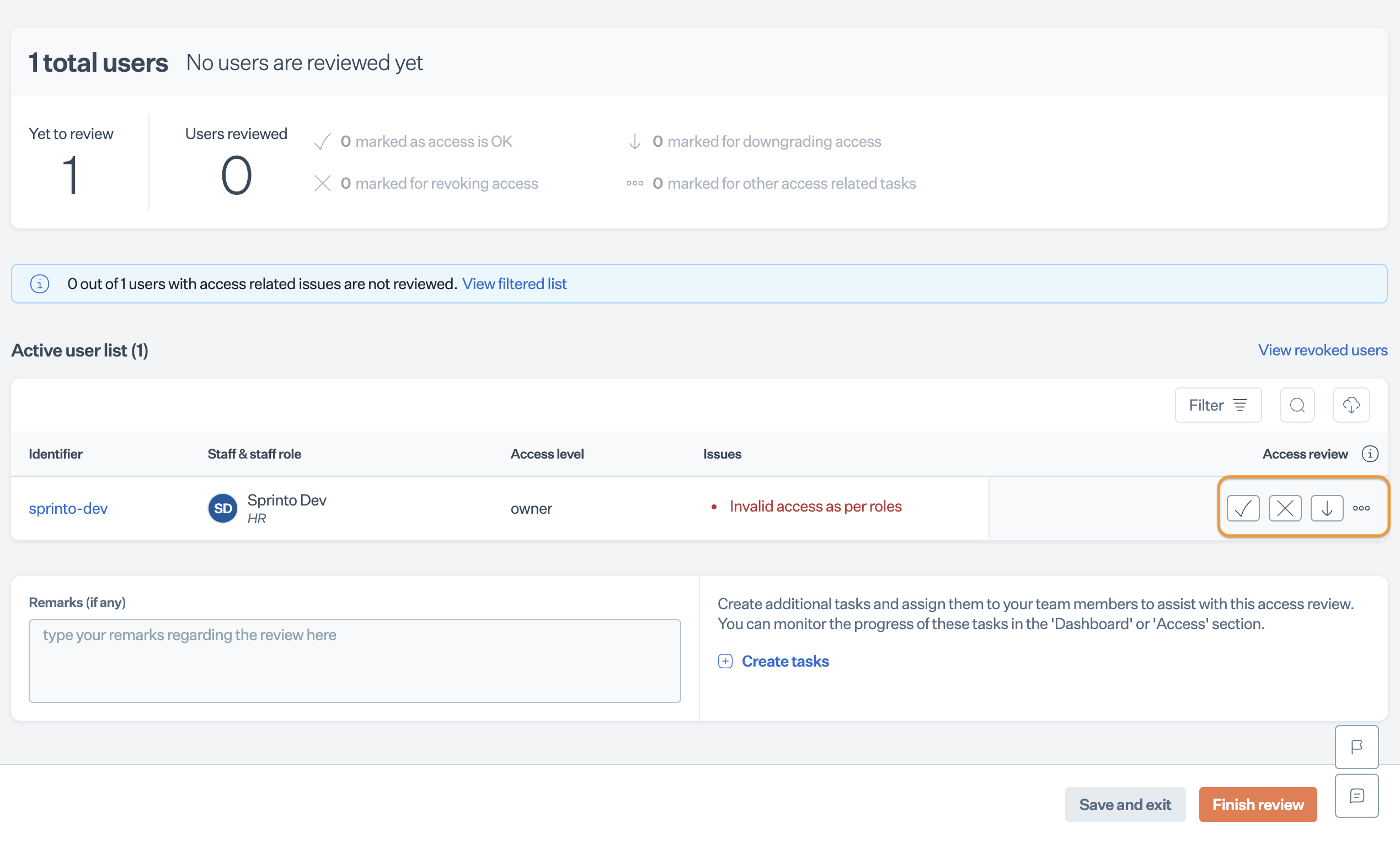
* Review the list of users that have access to the system. Take one of the following actions against each user to define their access validity:\
Note: Alternatively, you can click the Finish review button to mark all listed users as valid access.
* Mark for access ok: Mark the user's access as valid
* Mark for revoking access: Mark the user's access as invalid.
* Mark for downgrading access: Mark the user's access for downgrading.
* Create an access task: Generate a task related to the user's access.
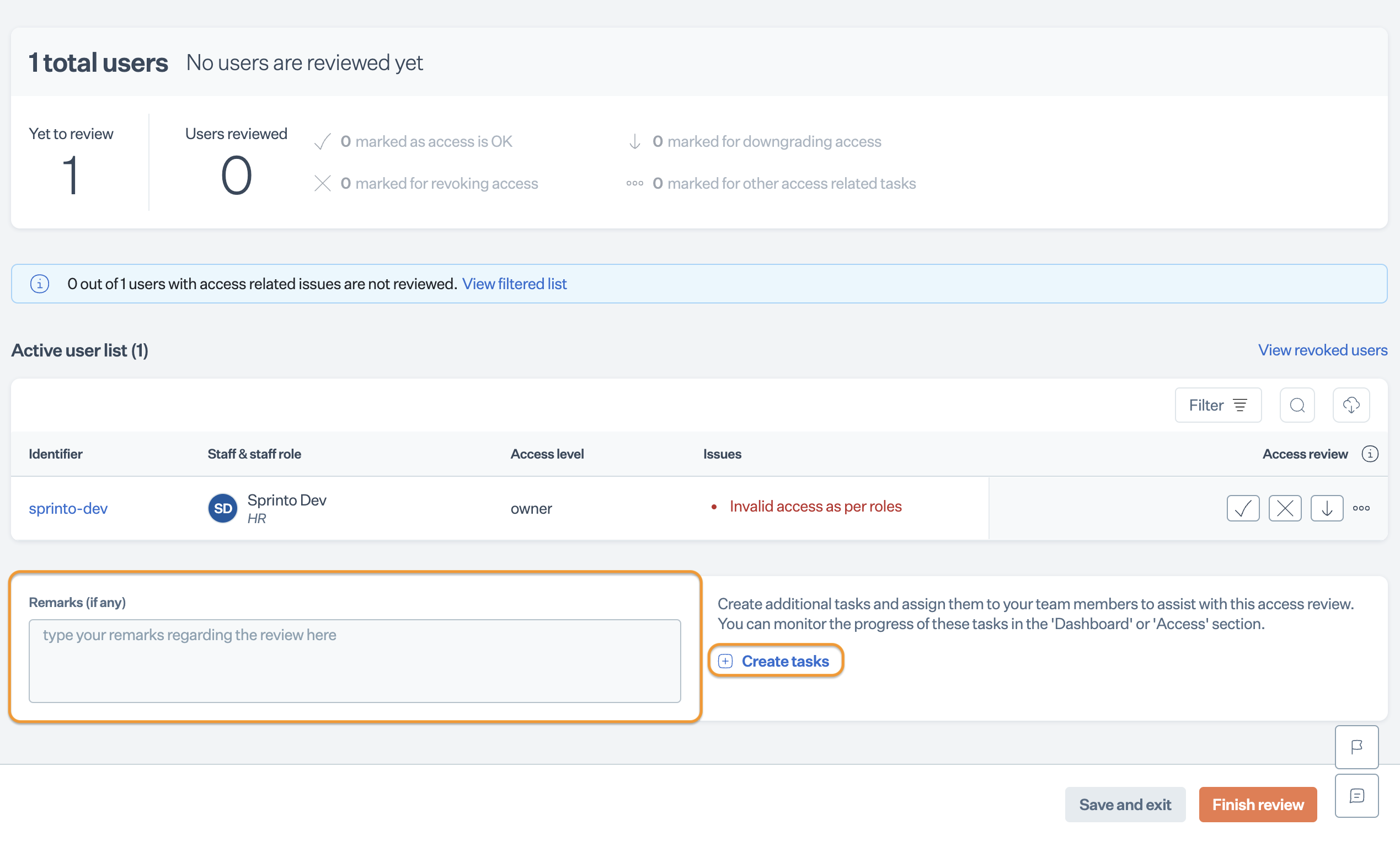
* Optionally, add your remarks or create a custom task related to your performed access review as needed.
* If you have created a custom task, fill in the following details:\
\- **Task name**\
\- **Assigned stakeholder**\
\- **Task due date**\
\- **Task description** (optional)\
\- **Supporting attachment** (optional)\
\
The task gets created and notified to the assigned stakeholder upon review completion.
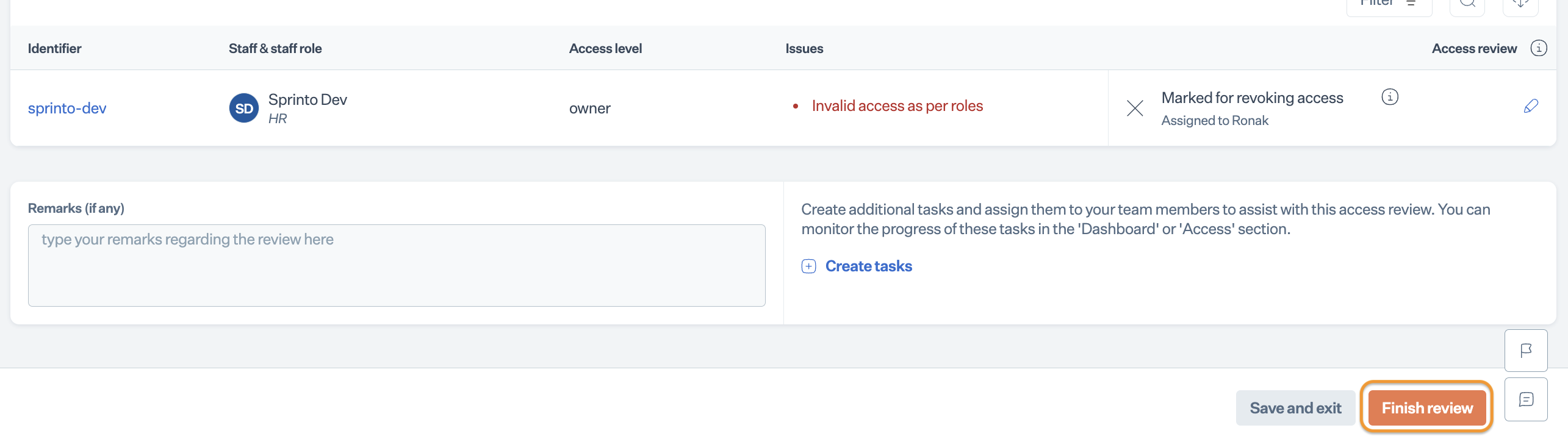
* Click Finish review to complete the access review.
Upon completing the access review, Sprinto will update the access review check against the critical system to "Passing." And the created task
For further assistance or queries, please contact [Sprinto Support](mailto:www.support@sprinto.com).