Source: https://atomic-works-test.docs-staging.pageloop.ai/integrations/overview/dayforce-hcm-integration-beta
# Dayforce Hcm Integration Beta
# Dayforce HCM Integration (Beta)
Ceridian Dayforce is a cloud-based Human Capital Management (HCM) platform used to streamline and manage HR and workforce operations.
### How this integration helps
The Dayforce integration allows Sprinto to retrieve essential staff details, including:
* Name
* Email address
* Job role
* Employment status
* Work assignment
* Reporting manager
* Hire/termination dates
Sprinto uses this data to generate an organisational chart, identify gaps, and trigger compliance checks whenever key information is missing or outdated.
### Sprinto checks for Ceridian Dayforce
When integrated with Dayforce, Sprinto runs the following checks:
| Sprinto check | Description | Reference procedure |
| ------------------------------------------ | ---------------------------------------------------------------------------------------------------------------------------- | ---------------------------------------------------------------------------------------------------------- |
| Staff role should be assigned | All in-scope staff must have an assigned staff role. | [How to fix](../../data-library/people/dashboard-actions/manage-staff-and-organisational-configuration.md) |
| Staff reporting manager should be assigned | All in-scope staff should have an assigned reporting manager. Senior leadership roles such as CEO, CTO, etc. are exceptions. | [How to fix](../../data-library/people/dashboard-actions/manage-staff-and-organisational-configuration.md) |
| Staff joining date should be defined | A joining date must be set for all newly onboarded staff. | [How to fix](../../data-library/people/dashboard-actions/manage-staff-and-organisational-configuration.md) |
### Before you begin
* Log in to Sprinto as an administrator.
* Ensure you have a paid Dayforce HCM account with API access.
* Ensure you have **Admin** access on the Dayforce account you want to integrate.
### Step 1: Configure the role and API access in Dayforce
1. Log in to your [Dayforce](https://int.dayforce.com/root/mydayforce/MyDayforce.aspx) HCM account.
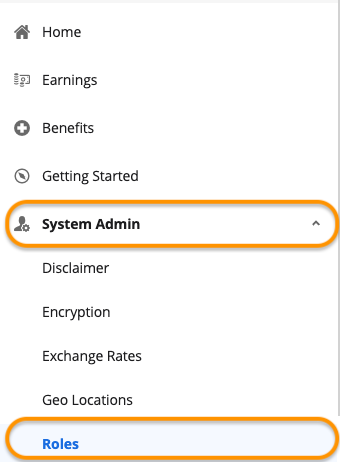
2. Go to **System Admin > Roles**.
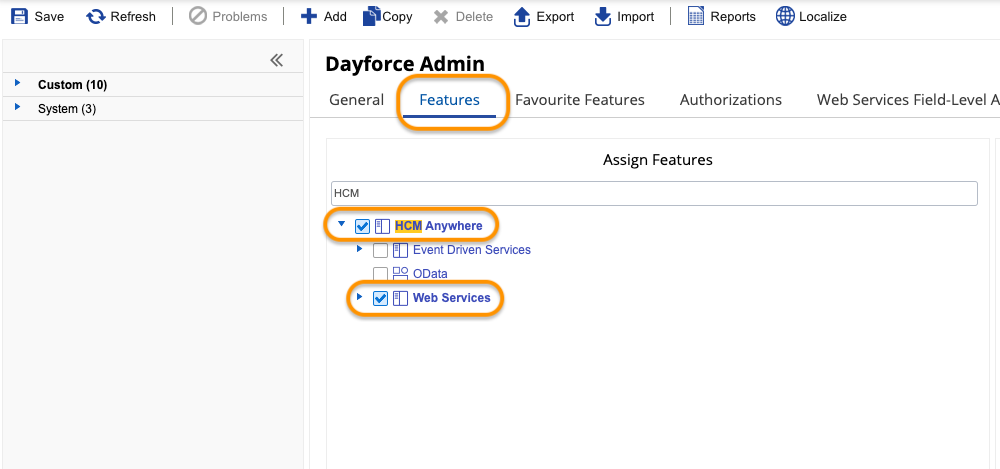
3. In the **Features** tab, enable:
* **HCM Anywhere**
* **Web Services**
4. Expand **Web Services** and ensure that you have selcted the **Read Data** check box.
5. Navigate to **Authorizations** and select these check boxes in the **Can Read** section:
* **Employee Key Information**
* **Employee Status Information**
* **Employee Work Assignment – Primary Records**
* **Employee Work Assignment – Secondary Records**
* **Employee Contact Information - Business**
{% hint style="info" %}
Follow this [guide](https://help.dayforce.com/r/documents/Dayforce-SOAP-Web-Services-Developer-Guide/Enable-the-Web-Services-Role-Feature) in case you have not enabled web services role feature.
{% endhint %}
6. Navigate to Web Services field-level access
7. Navigate to **RESTful Services** > **Human Resources** > **Employee**
8. Select the following fields for Sprinto to fetch the following data:
* For Effective End: Enable **EffectiveEnd**
* Unique Identifier for employees **-** Enable **XRefCode**
* For Name: Enable **FirstName,** **LastName** and **CommonName**
* For Manager information: Right-click **Employee managers** and **Select All**
* For Employment information: Enable **RESTful Services** > **Human Resources** > **EmployeeWorkAssignment** (and all child nodes)
* For Employment Status: Right-click **Employment Statuses** and **Select All**. Right-click **Employment Status Group** and **Select All**
* For Employee Date of Hire: Enable **EffectiveStart**, **StartDate,** **HireDate** and **OriginalHireDate**
* For Groups: Enable R**ESTful Services** > **Configuration** > **Location** (and all child nodes) and **RESTful Services** > **Human Resources** > **OrgUnitInfos**
* For Emails: Enable **Contacts and Addresses** (and all child nodes) under **RESTful Services** > **Human Resources**
{% hint style="info" %}
Payroll and other sensitive data scopes are not required. Sprinto does not fetch or store payroll-related information from Dayforce.
{% endhint %}
9. Go to **System Admin > User**. Ensure the authenticating user:
* Has the **Can See Self** option enabled.
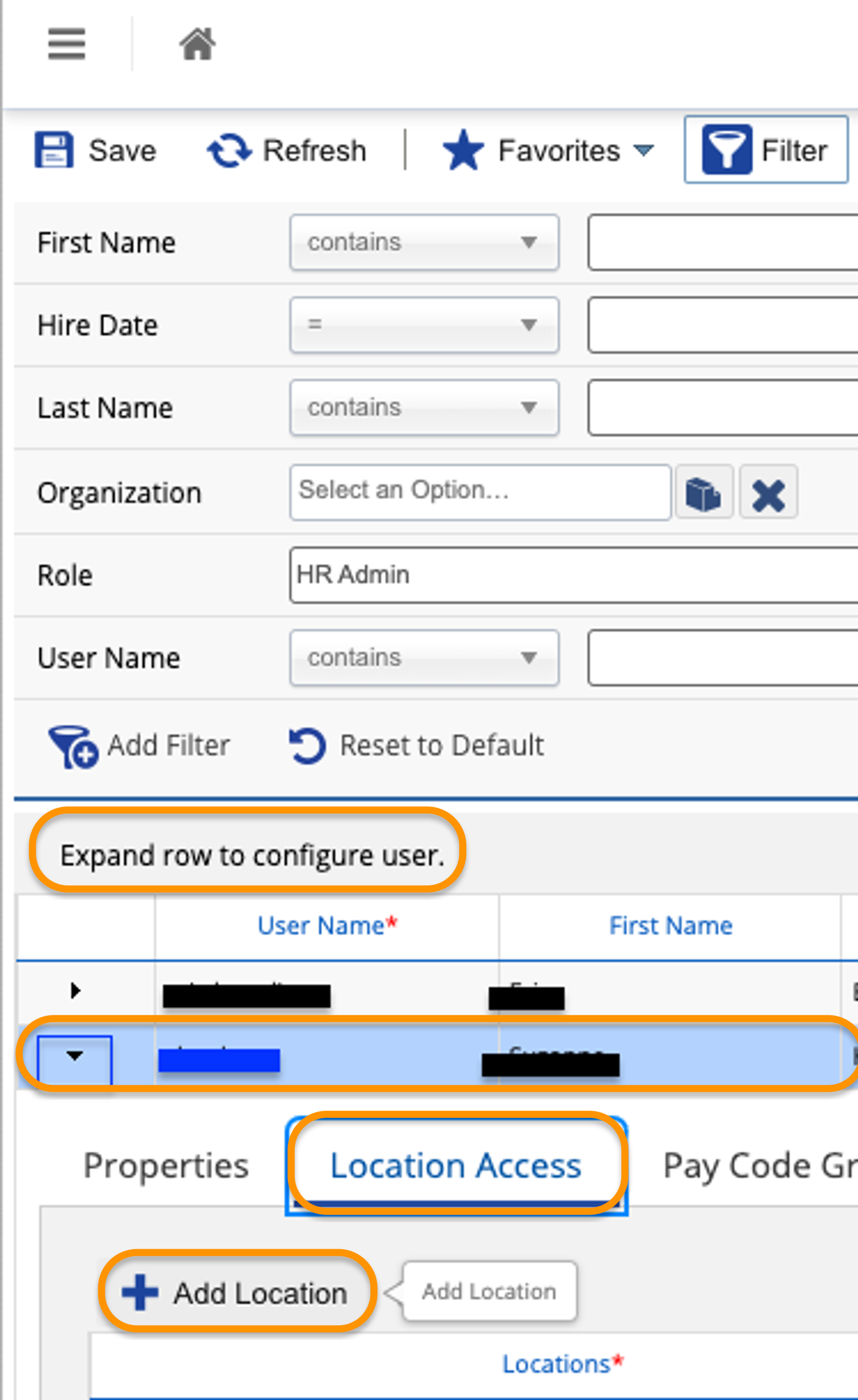
* Expand the User by clicking on the small down arrow as shown in the blue box below. Click on **Location Access**, **+ Add Location**, and add the **Company Level Location**.
10. Keep the following details ready:
* Company ID
* Username
* Password
You’ll need these credentials when connecting Sprinto to Dayforce.
### Step 2: Integrate Ceridian Dayforce with Sprinto
1. In Sprinto, go to **Settings > Integrations > Available integrations**.
2. Select **Connect** next to **Dayforce**.
3. On the integration page, tick the acknowledgement checkbox and select **Connect to Dayforce**.
{% hint style="info" %}
Ensure pop-ups are enabled in your browser.
{% endhint %}
4. In the Dayforce pop-up window:
* Enter your **Company ID**, then select **Next**.
* Enter your **User ID and Password**, then select **Next**.
### Step 3: Configure Dayforce on Sprinto
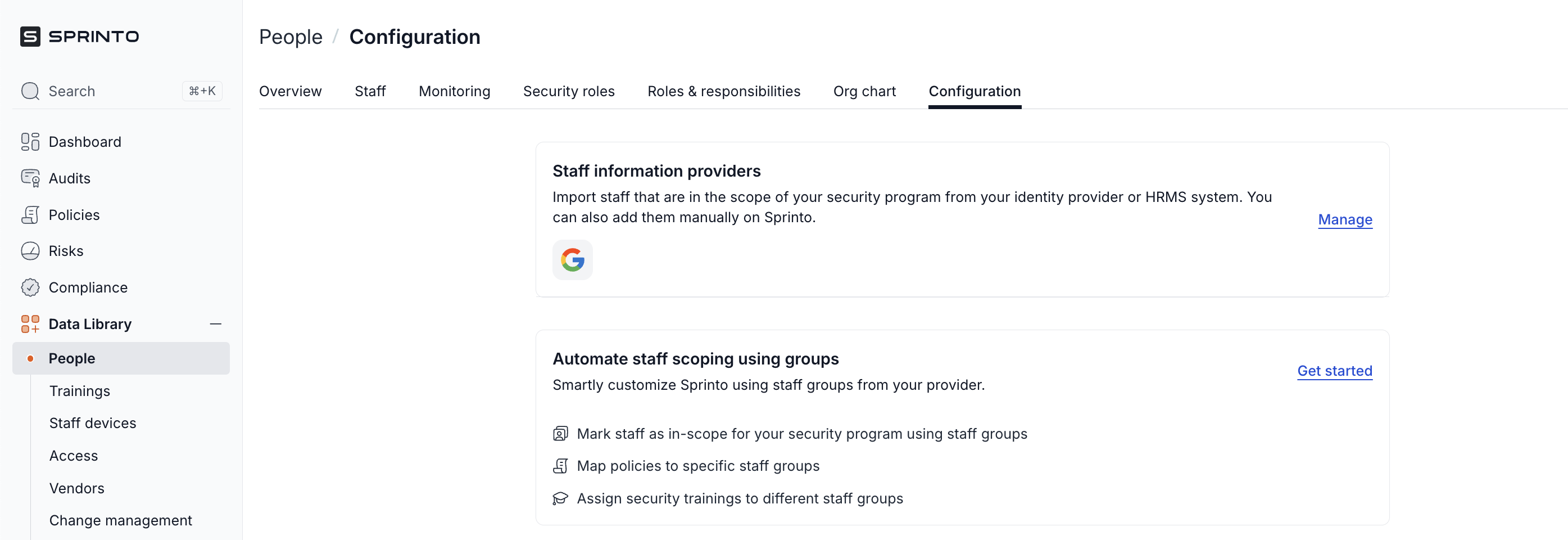
1. In Sprinto, go to **Data Library >** **People > Configuration** and select **Manage**.
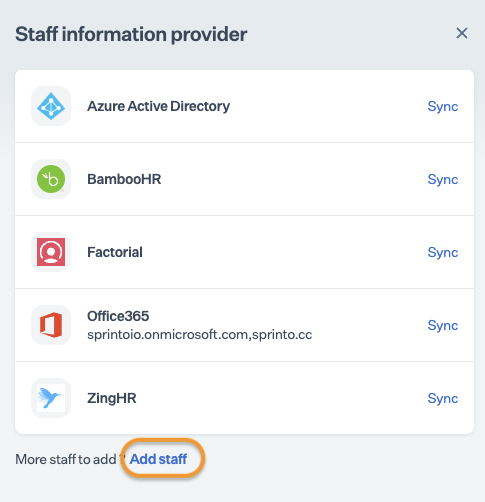
2. On the **Staff Information Provider** page, select **Add staff**.
3. On the **Add staff member** page, select **Add staff from HRMS** and then select the details button next to **Ceridian Dayforce**.
4. On the **Add Dayforce as a provider** page, select **Add Dayforce** .
You should now see **Connected** highlighted next to Dayforce. This confirms the integration is active.
### Final step
* After completing Step 2, allow 15–20 minutes for Sprinto to complete the initial data sync.
* Sprinto may take up to 24 hours to evaluate synced data and activate the relevant checks.
* To refresh data manually:
1. Go to **People > Configuration**.
2. Select **Manage**.
3. Select **Sync** next to **Dayforce**.
{% hint style="info" %}
Sprinto follows the _principle of least privilege_. Only staff details required for compliance are retrieved. Payroll or compensation data is not accessed or stored.
{% endhint %}
 (1).png)
 (1).png)
 (1).png)