Source: https://atomic-works-test.docs-staging.pageloop.ai/integrations/overview/docusign-nda-integration
# Docusign Nda Integration
# DocuSign NDA Integration
This guide explains how to integrate your Sprinto account with DocuSign to enable Non-Disclosure Agreement (NDA) management for restricted content in your Trust Center. Integrating DocuSign ensures that visitors are required to sign an NDA before accessing sensitive documents, thereby safeguarding your organisation’s confidential information.
By completing this integration, you can automate the NDA signing process and manage templates seamlessly within Sprinto.
### **Prerequisites**
Before you begin, ensure the following:
* You have an active Sprinto account with Administrator access.
* You have a DocuSign account with permission to create and manage templates.
* Your NDA template is created on DocuSign with blank fields for email and signatory.
* You are signed into both Sprinto and DocuSign.
### **Procedure**
Follow these steps to integrate DocuSign with Sprinto for NDA management:
#### **Step 1: Navigate to the Trust Center Configuration**
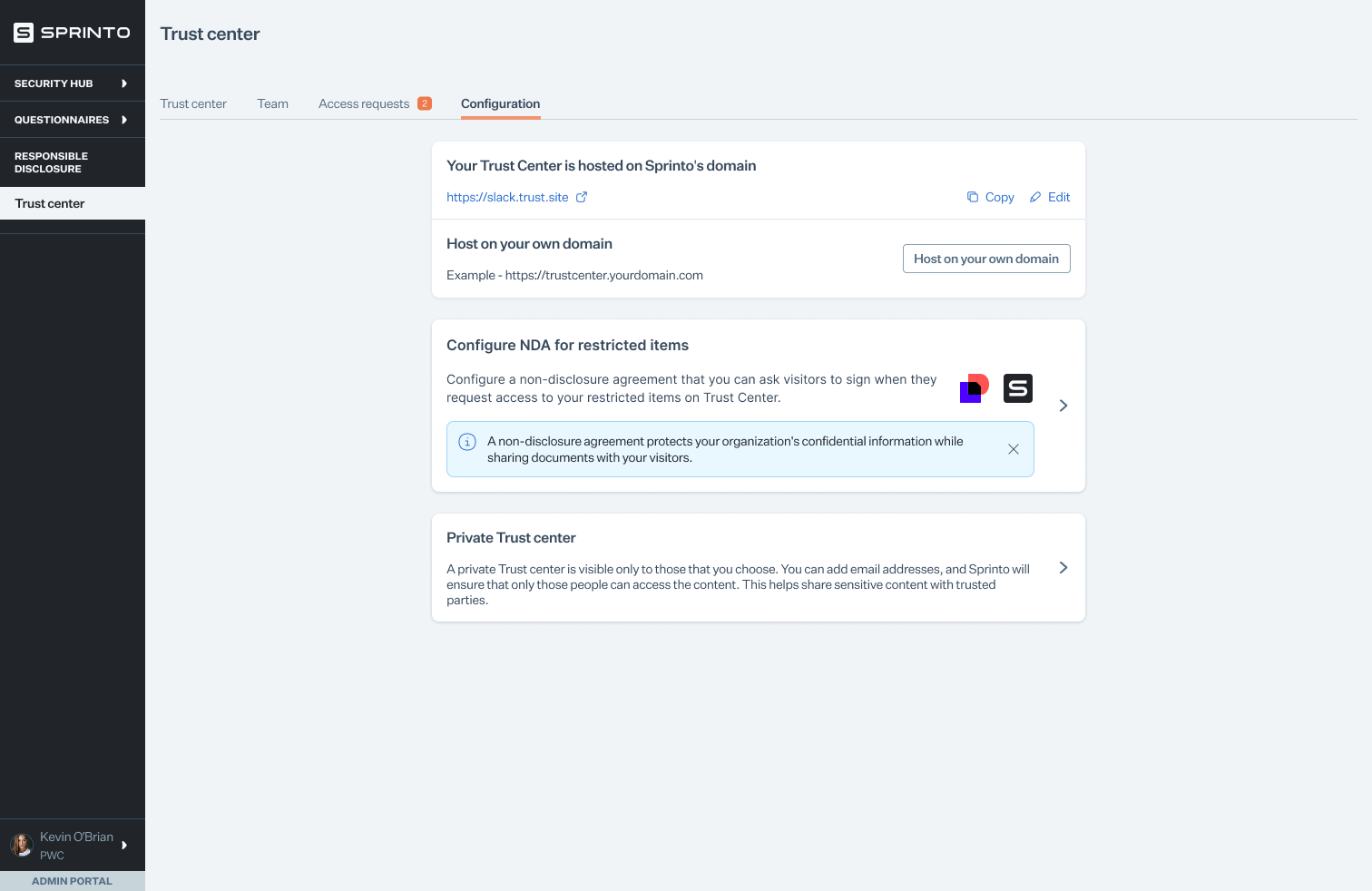
1. Sign in to your Sprinto account.
2. From the left-hand navigation panel, select **Trust Center**.
3. Click on the **Configuration** tab.
#### **Step 2: Configure NDA Settings**
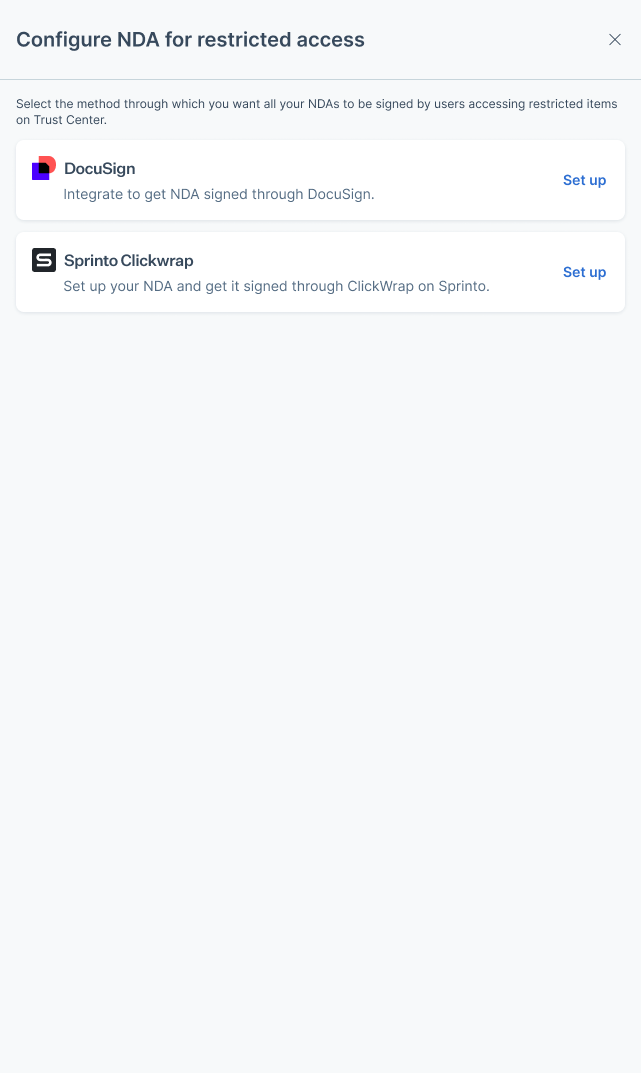
1. Under the **Configure NDA for restricted items** section, click the arrow to expand the settings
2. Click on **Set up** under **DocuSign**.
#### **Step 3: Connect DocuSign Account**
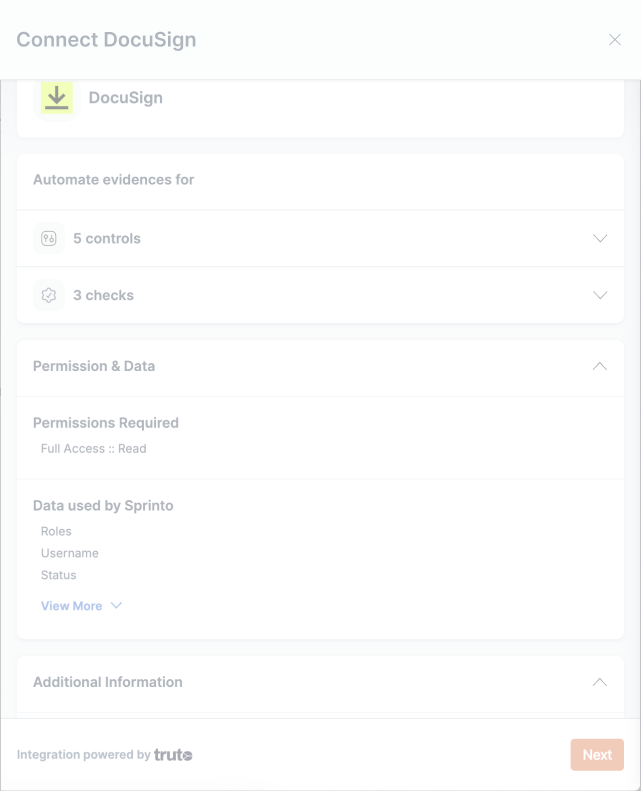
1. On the **Connect DocuSign** page, review the permissions and data being requested.
2. Click **Next** to proceed with authentication.
3. Sign in to your DocuSign account when prompted and grant the required permissions.
#### **Step 4: Select an NDA Template**
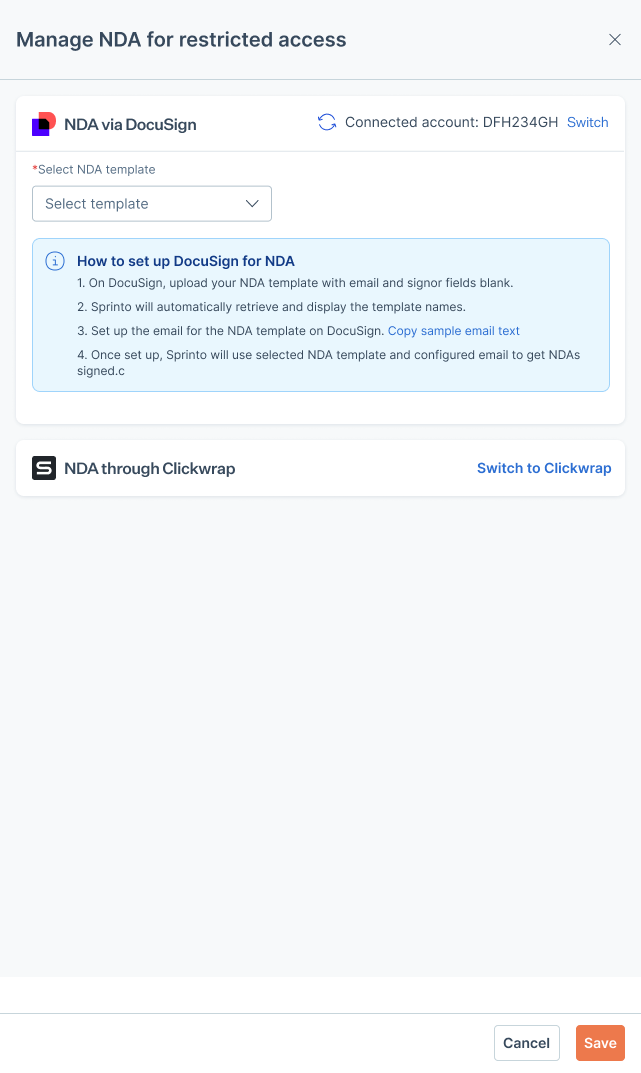
1. Once connected, you will see **Manage NDA for restricted access**.
2. From the dropdown list, select the NDA template you want to use.
{% hint style="info" %}
Sprinto automatically fetches and displays your DocuSign templates. Ensure that your template’s email and signer fields are left blank in DocuSign.
{% endhint %}
#### **Step 5: Confirm and Save the Configuration**
1. After selecting the template, review the instructions under **How to set up DocuSign for NDA**.
2. Click **Save** to complete the integration.
Your Sprinto Trust Center is now configured to require visitors to sign an NDA via DocuSign before accessing restricted items.
 #### **Step 5: Confirm and Save the Configuration**
1. After selecting the template, review the instructions under **How to set up DocuSign for NDA**.
2. Click **Save** to complete the integration.
#### **Step 5: Confirm and Save the Configuration**
1. After selecting the template, review the instructions under **How to set up DocuSign for NDA**.
2. Click **Save** to complete the integration.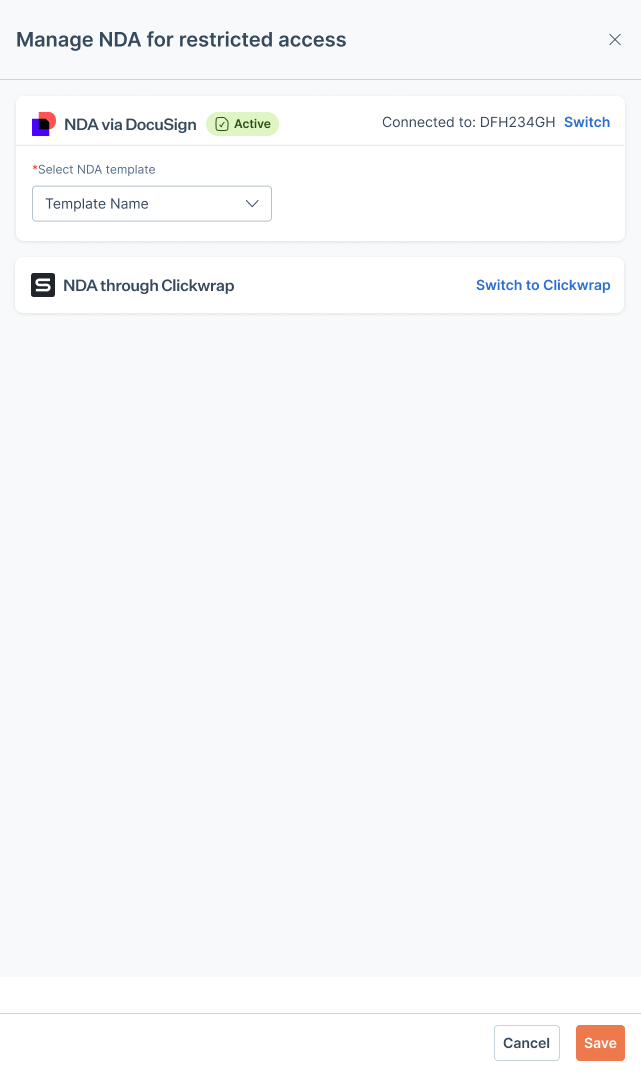 Your Sprinto Trust Center is now configured to require visitors to sign an NDA via DocuSign before accessing restricted items.