Source: https://atomic-works-test.docs-staging.pageloop.ai/integrations/overview/solarwinds-service-desk-integration

# Solarwinds Service Desk Integration

# SolarWinds Service Desk Integration

The following guide will help you to integrate your SolarWinds account with Sprinto as a ticketing system.

#### Sprinto checks for SolarWinds <a href="#sprinto-checks-for-solarwinds" id="sprinto-checks-for-solarwinds"></a>

Below are the available checks for SolarWinds integration:

<table><thead><tr><th width="220.8984375">Sprinto Check</th><th>Required action/ Reference procedure</th></tr></thead><tbody><tr><td>No new change management tickets were added in over 30 days</td><td>The following Sprinto check fails if a change request ticket gets created over 30 days.</td></tr><tr><td>Change management ticket should have an assignee</td><td>The following Sprinto check fails if any change request tickets don’t have an assignee.<br><br>How to fix: Assign a relevant stakeholder to the specified change ticket and ensure all tickets have an assignee assigned.</td></tr><tr><td>Ticketing system for change management should be setup</td><td>The following Sprinto check fails if no ticketing system is configured on your Sprinto account.<br><br>How to fix: The check starts passing once a ticketing system is configured. Follow the procedure below to configure SolarWinds Service Desk as a ticketing system.</td></tr><tr><td>At least one change management system should be connected</td><td>The following Sprinto check fails if no change management system is configured on your Sprinto account. <br><br>How to fix: Ensure at least one change management system is configured.</td></tr></tbody></table>

### Before you begin <a href="#before-you-begin" id="before-you-begin"></a>

* Ensure you have admin privileges on the SolarWinds Service Desk account you are integrating.
* Log in to the Sprinto admin portal using your credentials.

### Procedure <a href="#procedure" id="procedure"></a>

1. Generate API token on SolarWinds Service Disk
   1. Log in to your[ SolarWinds Service Desk](https://app.samanage.com/login) account using your credentials.
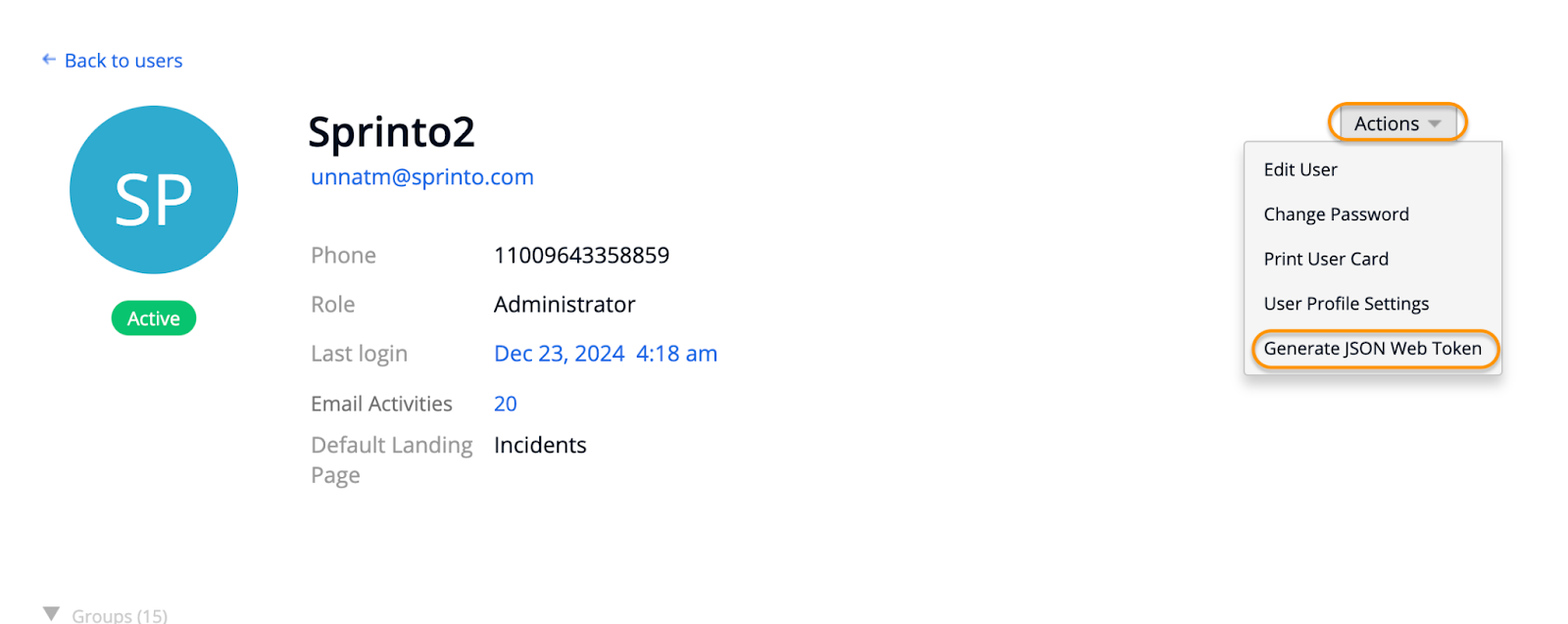
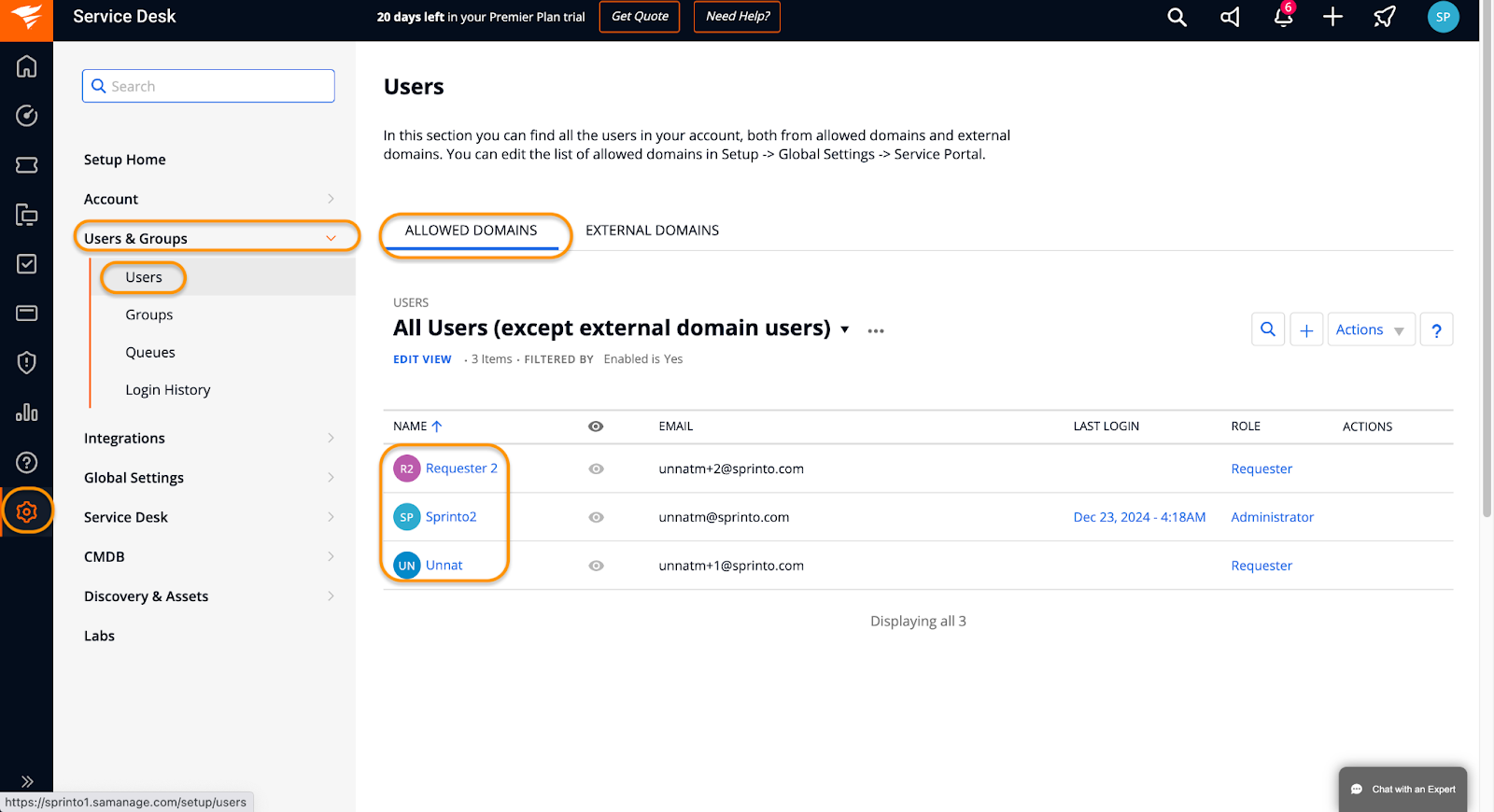
   2.  Navigate to Setup > Users & Groups > Users, and locate your User details page.\
       <br>

       <figure><img src="https://s3.amazonaws.com/cdn.freshdesk.com/data/helpdesk/attachments/production/72129767540/original/e-STRKhFP1e8fr9HzyJigx8Po1EEJzyqSA.png?1735191977" alt="" width="563"><figcaption></figcaption></figure>
   3. Click on the admin user to generate the token.
   4.  Click Actions and select Generate JSON web token.<br>

       <figure><img src="https://s3.amazonaws.com/cdn.freshdesk.com/data/helpdesk/attachments/production/72129767539/original/Aqa88TG-lF2c4U5RAa52uqNbg_BtRi1X8A.png?1735191977" alt="" width="563"><figcaption></figcaption></figure>
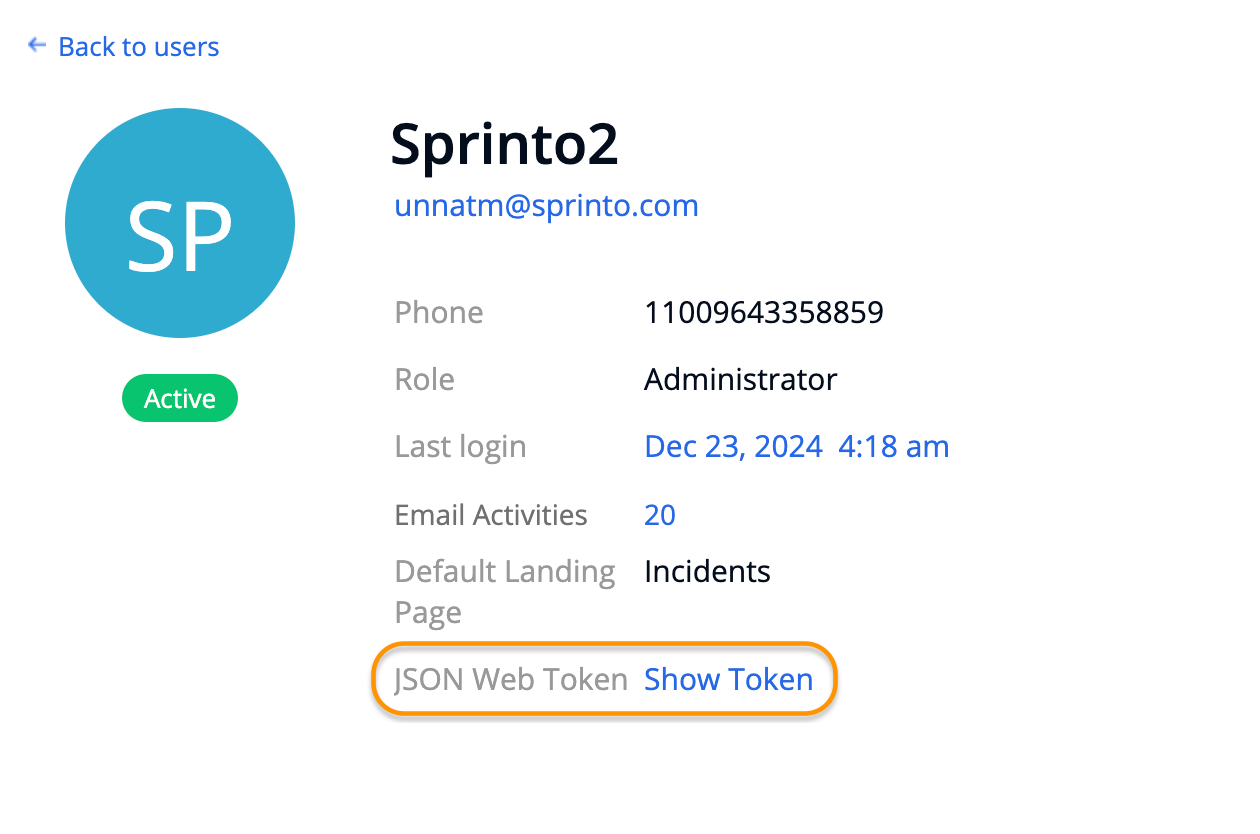
   5.  Copy the generated token and save it securely. We will need this token on Sprinto to build integration.<br>

       <figure><img src="https://s3.amazonaws.com/cdn.freshdesk.com/data/helpdesk/attachments/production/72129767538/original/8_03BfrTCK-uvKgizBDTauytOTVaEKKj0w.png?1735191977" alt="" width="563"><figcaption></figcaption></figure>
2. Integrate SolarWinds with Sprinto
   1. From the Sprinto admin portal, navigate to Settings > Integrations and select the Available tab.
   2.  Click Connect next to SolarWinds Service Desk.

       <figure><img src="../../.gitbook/assets/Screenshot 2025-09-25 at 18.02.40.png" alt="" width="563"><figcaption></figcaption></figure>
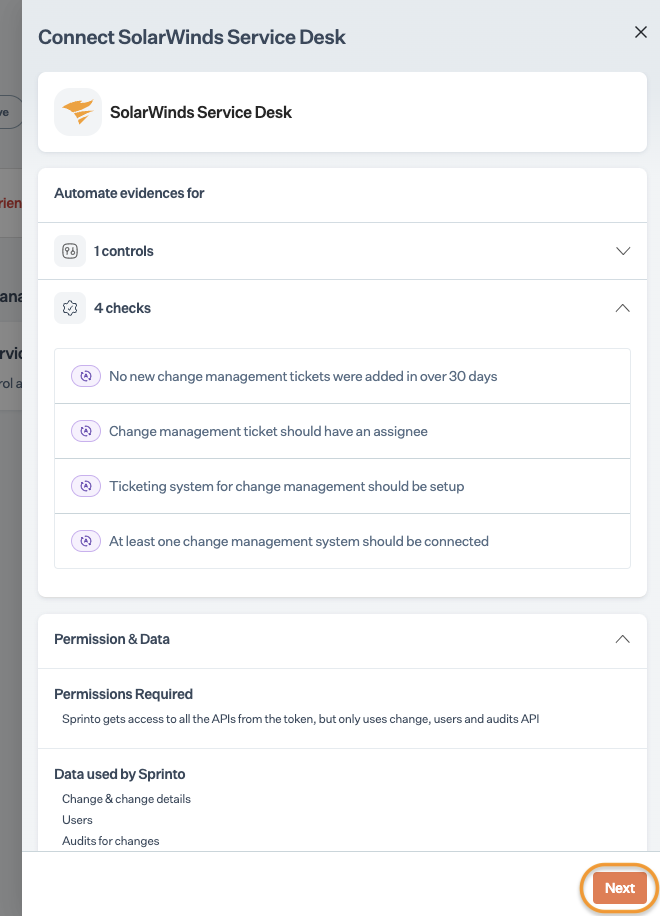
   3.  Read the on-screen instructions, then click Next.<br>

       <figure><img src="https://s3.amazonaws.com/cdn.freshdesk.com/data/helpdesk/attachments/production/72129767529/original/sTbpU4aiQLXMYsjVtbvgB9x3D37l4zr_ZA.png?1735191975" alt="" width="375"><figcaption></figcaption></figure>
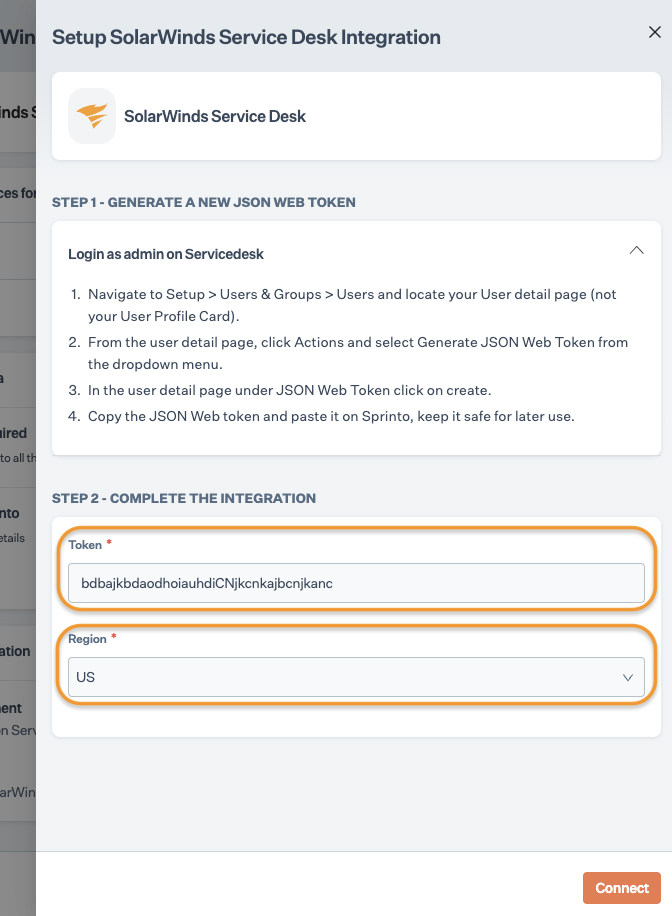
   4.  Enter the token that you copied from Step 1 and select the account region. Click Connect. \
       Note: Upon successful integration, you can find SolarWinds Service Desk under the Active tab.<br>

       <figure><img src="https://s3.amazonaws.com/cdn.freshdesk.com/data/helpdesk/attachments/production/72129767532/original/sJ_OawyZzuIlIv_muuVqUBZgIn4vr3g0ag.png?1735191977" alt="" width="375"><figcaption></figcaption></figure>
3. Configure SolarWinds Service Desk as ticketing system
   1. Navigate to Data Library > Change Mangement, then select the Change Management Systems tab.
   2. Click Add system.
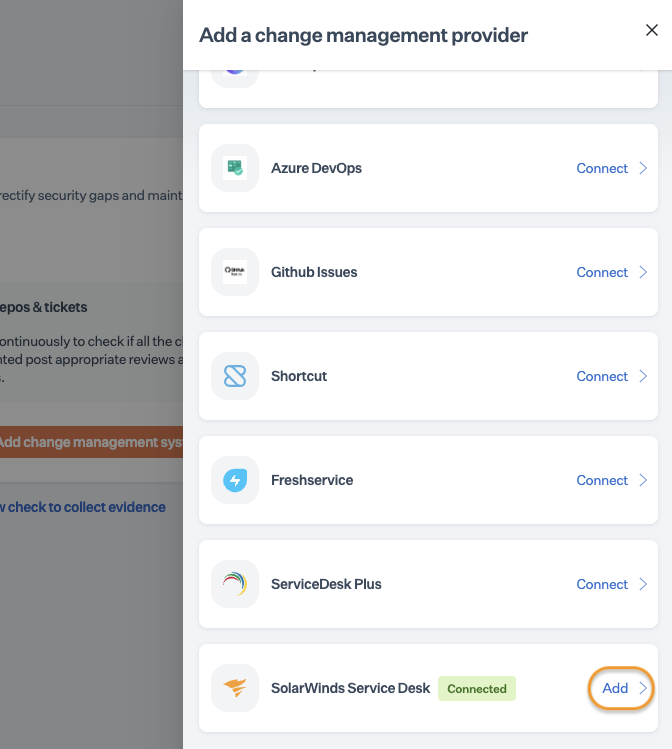
   3.  Click Add next to SolarWinds Service Desk under the ticketing systems. Note: For active connections, “Connected” is highlighted next to the services.<br>

       <figure><img src="https://s3.amazonaws.com/cdn.freshdesk.com/data/helpdesk/attachments/production/72129767531/original/2W7UYyCVCujLAIPCDHLDajpFRgFw6LAz1g.png?1735191977" alt="" width="375"><figcaption></figcaption></figure>
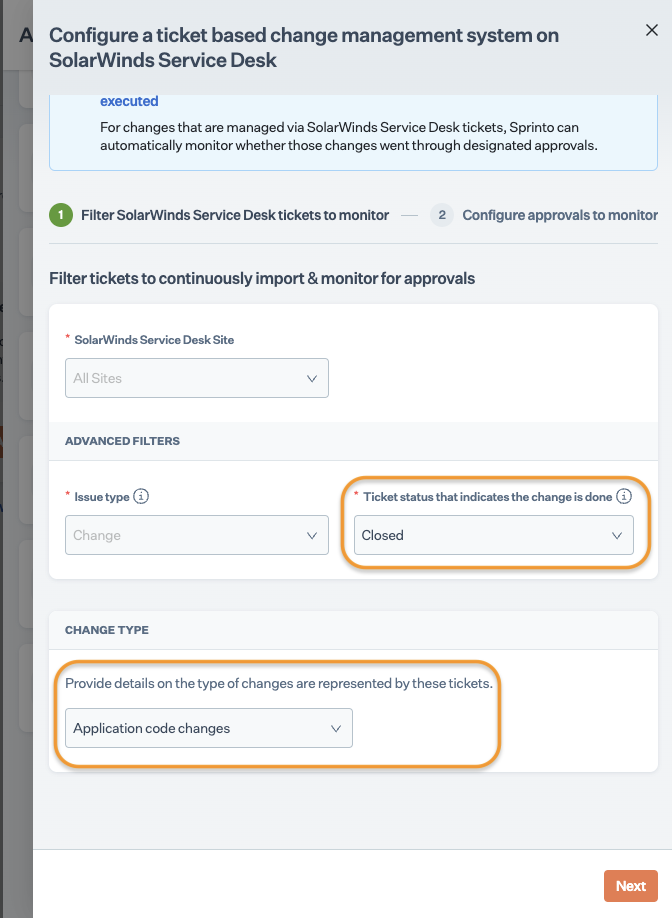
   4. From the configuration page, select the ticket status that represents the changes described in the ticket are incorporated. For example, in a project, tickets in “Closed” status represent incorporated changes.
   5.  Select the appropriate change type for the configured account.<br>

       <figure><img src="https://s3.amazonaws.com/cdn.freshdesk.com/data/helpdesk/attachments/production/72129767537/original/PgUMaZ3hpj6ZyNYzrZ7lTJPeN4QC20usPw.png?1735191977" alt="" width="375"><figcaption></figcaption></figure>
   6. Click Next.
   7. Define tickets approval states:\
      Note: Sprinto monitors the tickets and highlights if any change ticket is moved to a closed state without approval.
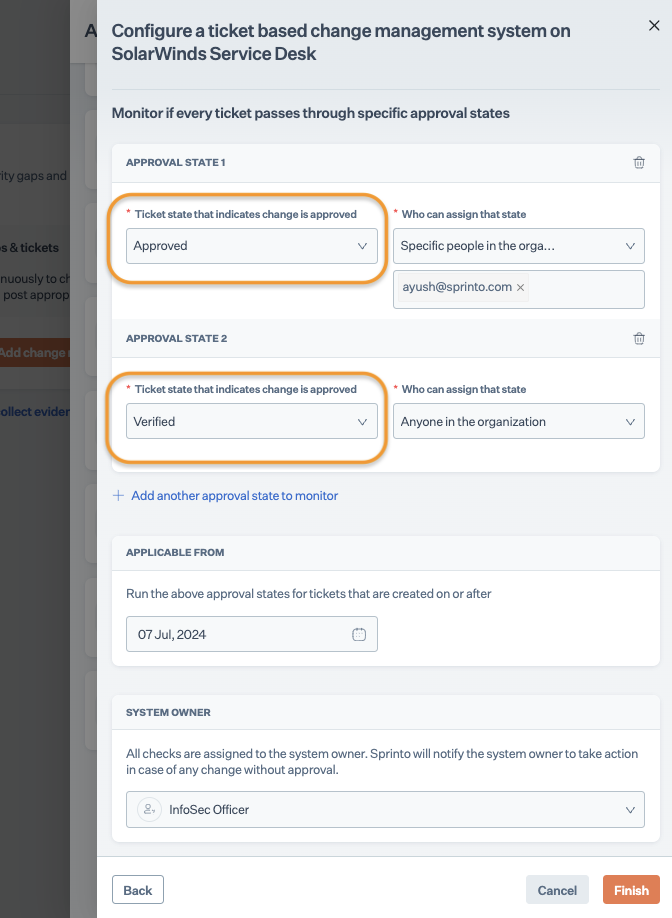
      1.  Enter and define the approval state that represents the requested changes that are reviewed and approved for incorporation. For example, in a project, a ticket in “Approved” status may represent changes approval.<br>

          <figure><img src="https://s3.amazonaws.com/cdn.freshdesk.com/data/helpdesk/attachments/production/72129767535/original/030DSdA_74o8xjRseFwunS4omrTUt56IOA.png?1735191977" alt="" width="375"><figcaption></figcaption></figure>
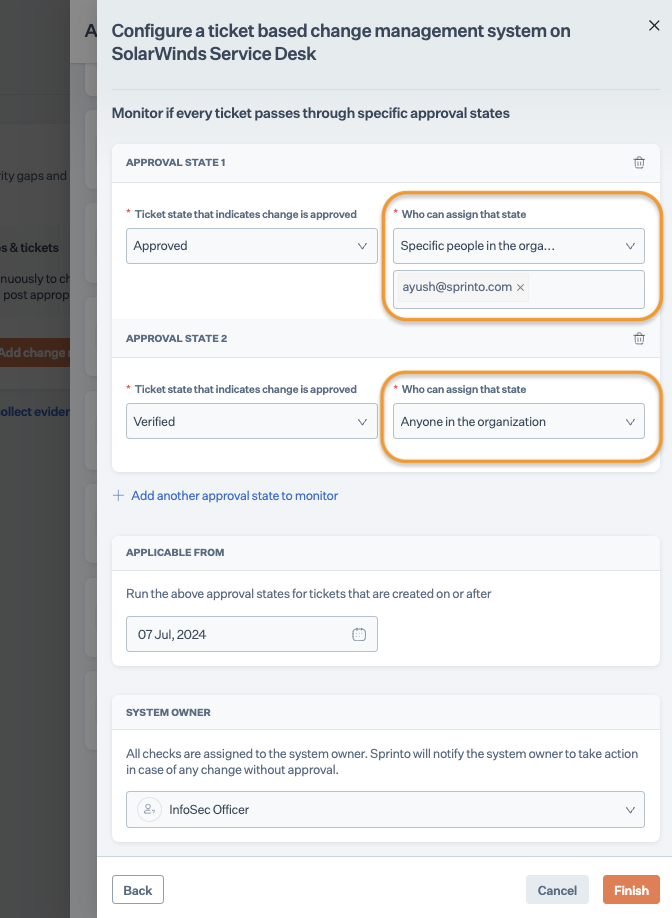
      2. Select who can approve the change tickets. Select one of the following options:
         * Anyone in the organization
         *   Specific person in the organization<br>

             <figure><img src="https://s3.amazonaws.com/cdn.freshdesk.com/data/helpdesk/attachments/production/72129767534/original/_dl-QCBj9Zi8BORNfhbznyZ8mOUsuDUGqA.png?1735191977" alt="" width="375"><figcaption></figcaption></figure>
      3. If required, click Add another approval state to monitor to add multiple approval states for change tickets.
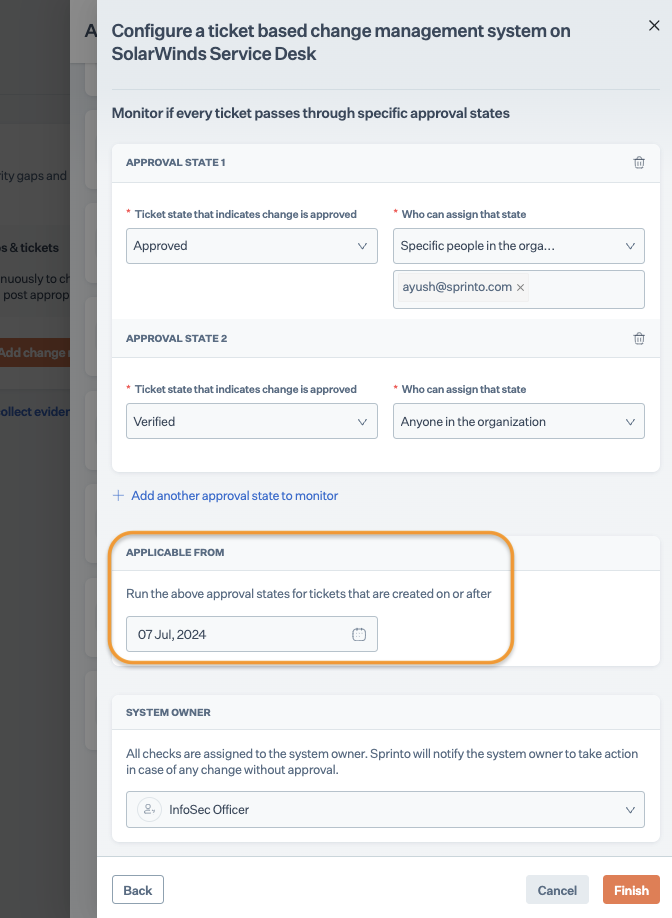
      4.  Select an applicable date. Sprinto validates the change tickets from the selected date.<br>

          <figure><img src="https://s3.amazonaws.com/cdn.freshdesk.com/data/helpdesk/attachments/production/72129767533/original/IZwoWp-CT8jUmhoT-8R61og8RJ260ELvZw.png?1735191977" alt="" width="375"><figcaption></figcaption></figure>
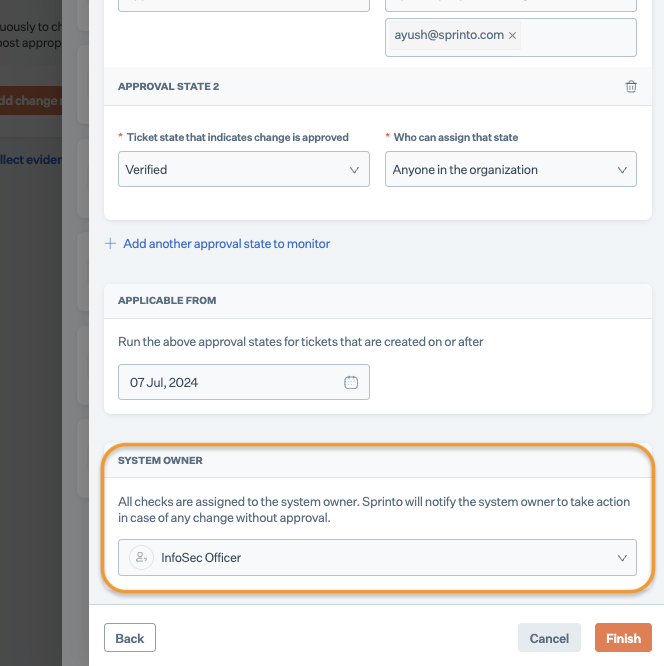
      5.  Select a system owner for the SolarWinds System Desk. By default, InfoSec officer is assigned as the system owner.<br>

          <figure><img src="https://s3.amazonaws.com/cdn.freshdesk.com/data/helpdesk/attachments/production/72129767527/original/rqY5a5XS7Dm4Rtw0lEht3inlrgk7fdN9WQ.png?1735191973" alt="" width="375"><figcaption></figcaption></figure>
      6. Click Finish.

### Support <a href="#support" id="support"></a>

Please get in touch with our [support team](mailto:www.support@sprinto.com) if you have any queries related to the integration or need any assistance.