Source: https://atomic-works-test.docs-staging.pageloop.ai/integrations/overview/zendesk-sell-integration
# Zendesk Sell Integration
# Zendesk Sell Integration
The following article describes how to integrate Sprinto with Zendesk Sell. Zendesk Sell is a leading CRM and sell automation platform.
**Note**: We use [Truto.one](https://truto.one/) as our integration partner to integrate and fetch required user details from the Zendesk Sell account.
### How this integration helps
* Integration helps to fetch the users list from the Zendesk Sell account.
* If an off-boarding staff member has access to the organization’s Zendesk account, Sprinto activates a check against the staff member to revoke Zendesk Sell access.
### Prerequisites for Integration
* Log in to Sprinto as administrator.
* Ensure you have “Admin” access on the Zendesk Sell account you want to integrate.
### How to integrate Sprinto with Zendesk Sell
1. Go to **Settings** > **Available** **integrations** and click **Connect** next to the Zendesk Sell icon.
2. On **Integration** page, select the acknowledgment checkbox, then click on **Connect to Zendesk Sell.**
**Note**: Ensure you have turned on the option to display pop-up windows in your browser.
3. On **Zendesk sell authentication** page, click on **Connect**.
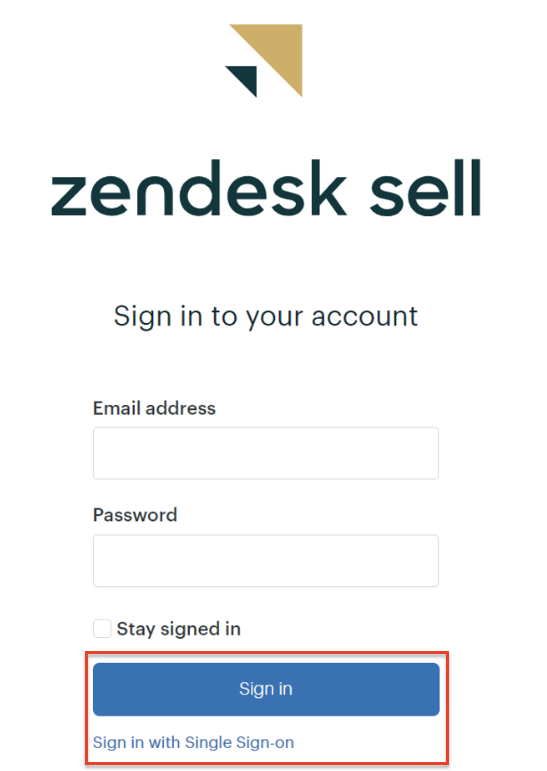
4. Login to Zendesk Sell with your credentials. \
Note: This completes connecting the Zendesk Sell account with Sprinto. Follow steps 6 onwards to complete the integration process.
5. On Sprinto app, go to **Data Library**> **Access**, then click on **Add critical system**.
6. On **Add critical access system** page, select the Zendesk Sell and click on **Add System**.
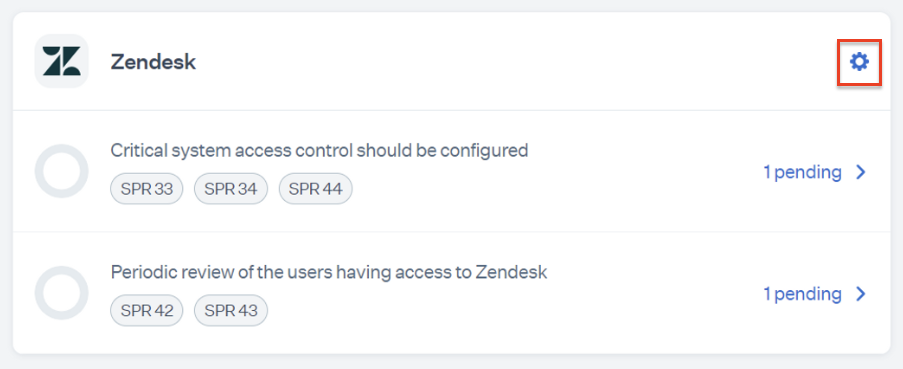
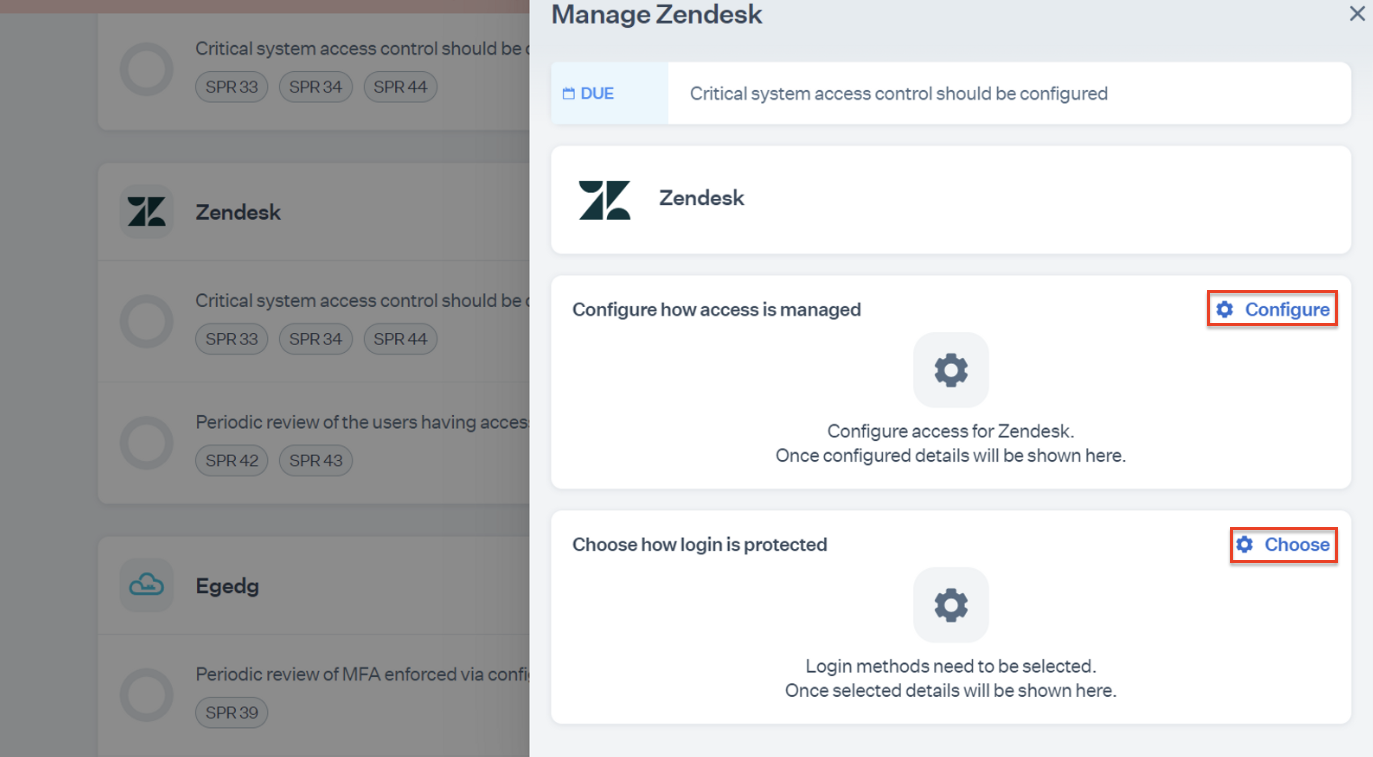
7. On **Access** page, click on the setting icon next to Zendesk Sell.
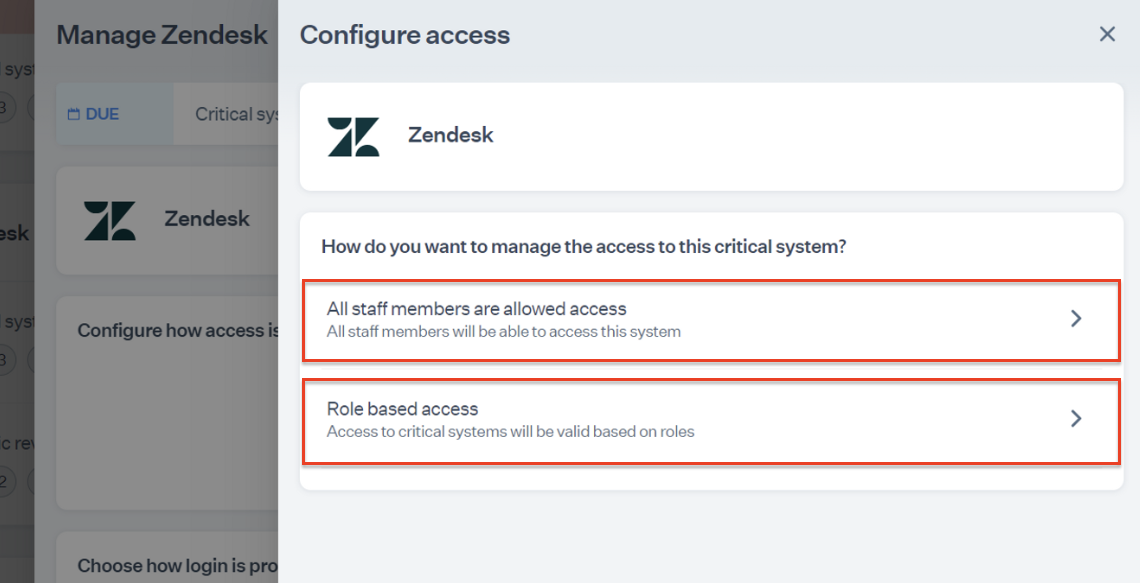
8. On **Manage** page, click on Configure/Choose to manage the following details:
* **Manage user access**
* **All staff members are allowed access**: Selecting this option allows all currently active staff members to have authorized access to the critical system.
* **Role-based access**: Selecting this option allows selected org roles to have authorized access to the critical system.
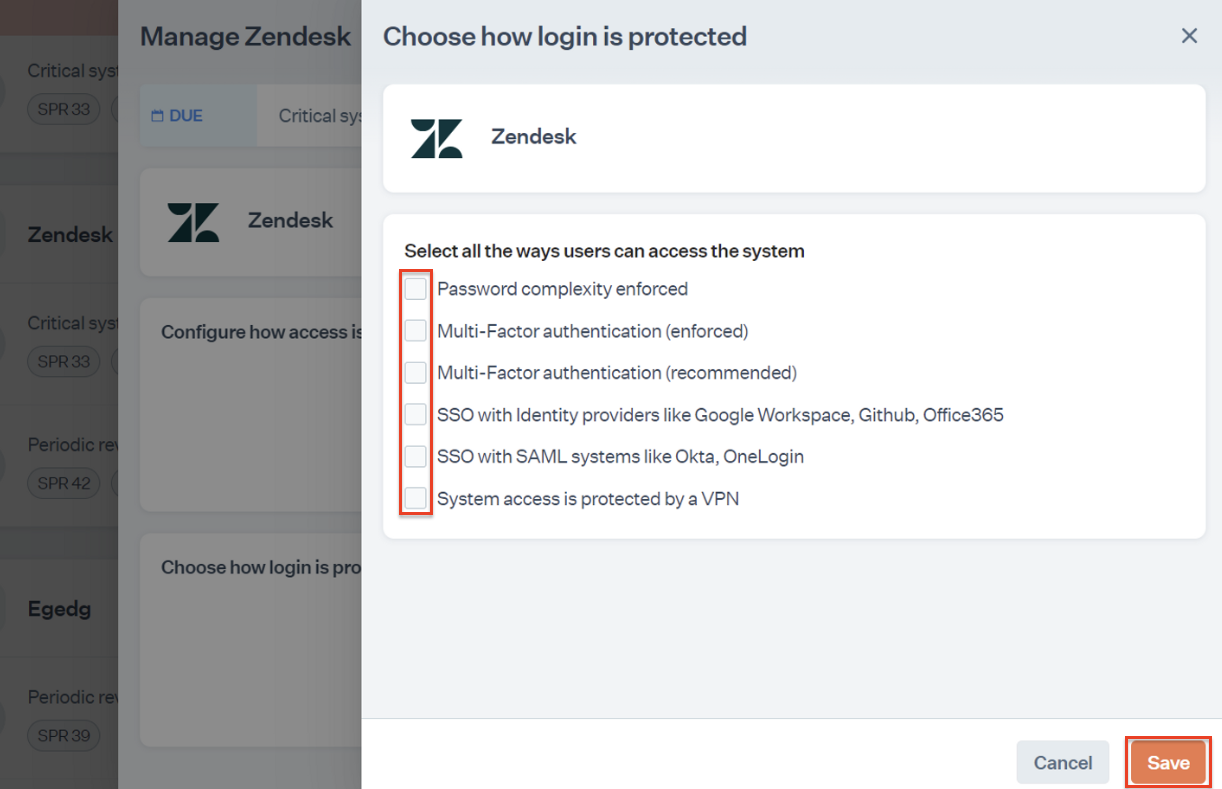
* **Manage login type**
**Note**: Select all the implemented login type methods for the critical system. Multiple selection is allowed.
* Password complexity enforced
* Multi-Factor authentication enforced
* Multi-Factor authentication recommended
* SSO with identity providers
* SSO with SAML systems
* System access is protected by a VPN
### Final step
This completes the integration procedure. To check for pending tasks or failing checks, go to Data Library > **Access** and review the Zendesk Sell critical system card.