Source: https://atomic-works-test.docs-staging.pageloop.ai/monitors/dr.-sprinto-and-manual-inputs/how-to-fix-windows-powershell-issue-for-dr.-sprinto
# How To Fix Windows Powershell Issue For Dr. Sprinto
# How to fix Windows Powershell issue for Dr. Sprinto
Encountering errors running the Dr. Sprinto app is a rare sight, but if you encounter one, you can follow the steps below for the workaround. Windows machines are highly configurable; sometimes, these configurations can block the Windows Powershell command; the Dr. Sprinto app runs in the background to fetch the computer configuration.
In a few devices, you could encounter an issue: Dr. Sprinto doesn’t get loaded and ends up with a spinning wheel on the loading screen.
1. **Confirming the Windows Powershell issue.**
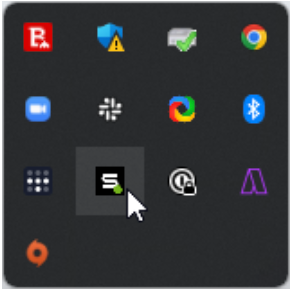
1. From the Windows taskbar, navigate to the installed Dr. Sprinto app icon.
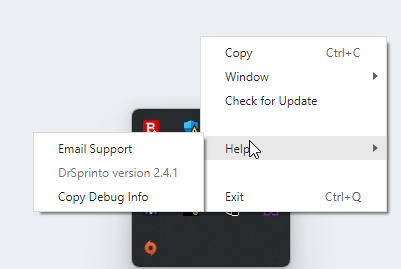
2. **Right-click** the Dr. Sprinto app icon, and navigate to **Help** > **Copy Debug Info**. This copies the debug log on your clipboard.
3. Open any text editor and paste the copied debug log.
4. Look for the **Powershell** error in the debug log. Refer to the below image for reference.
2. **Fixing Powershell issue**.
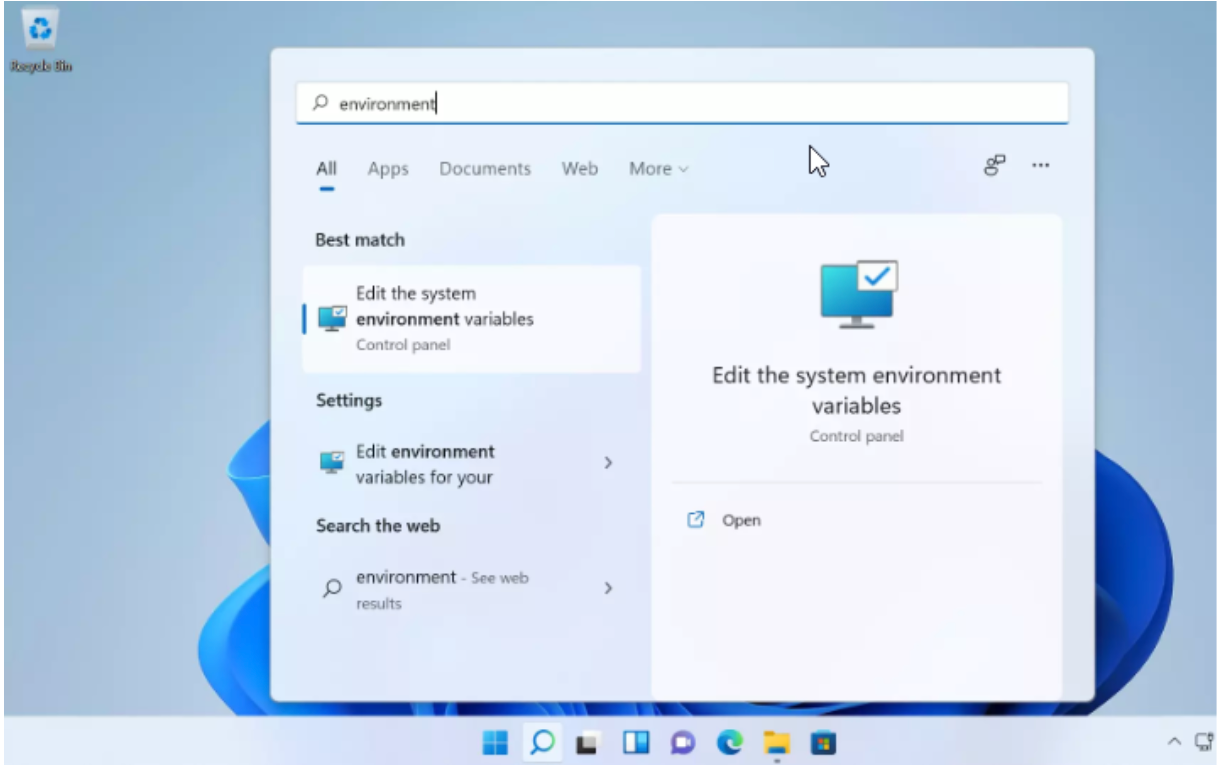
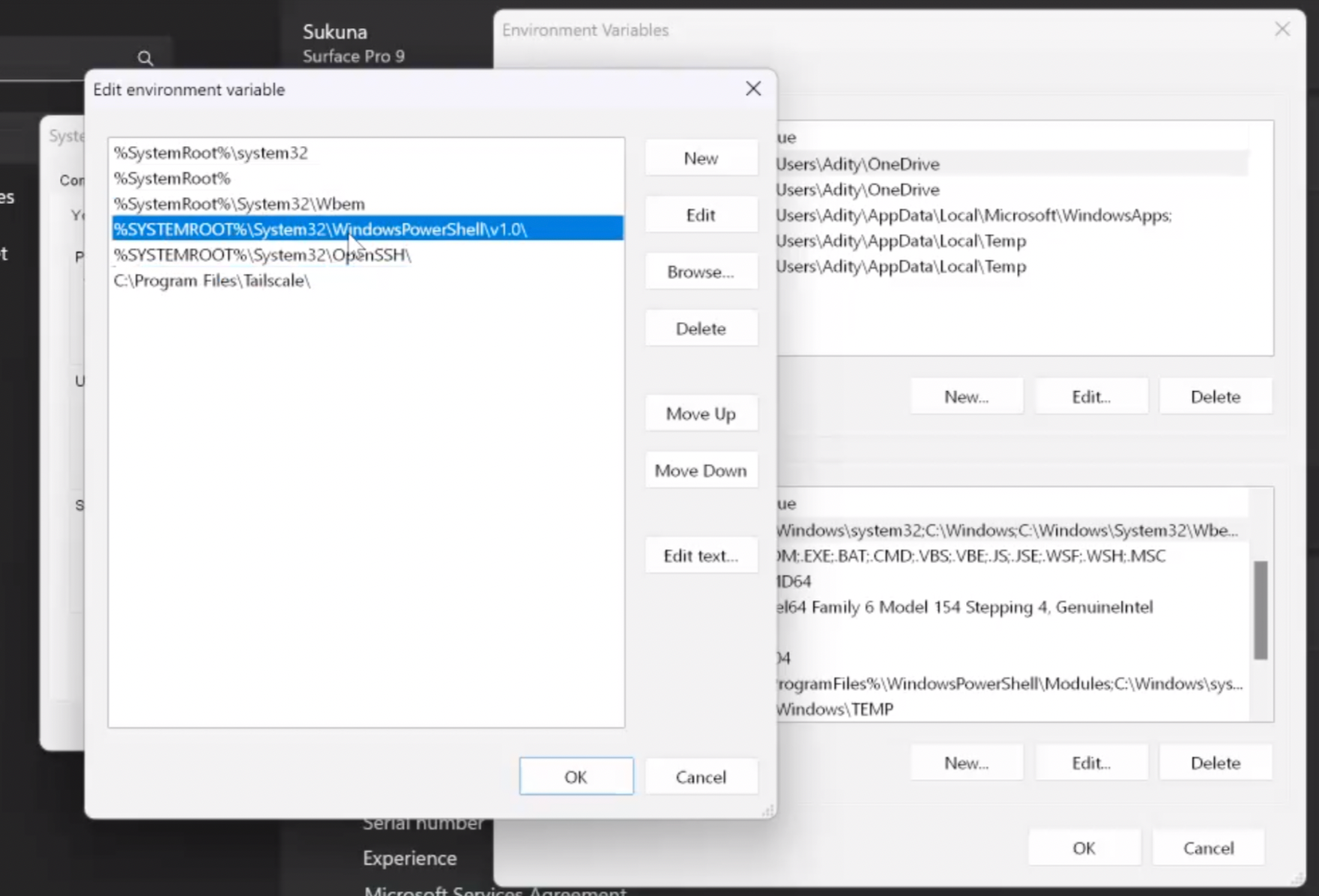
1. From the Windows search option, search for **Environment** and select the **Edit the system environment variables** option from the search result.
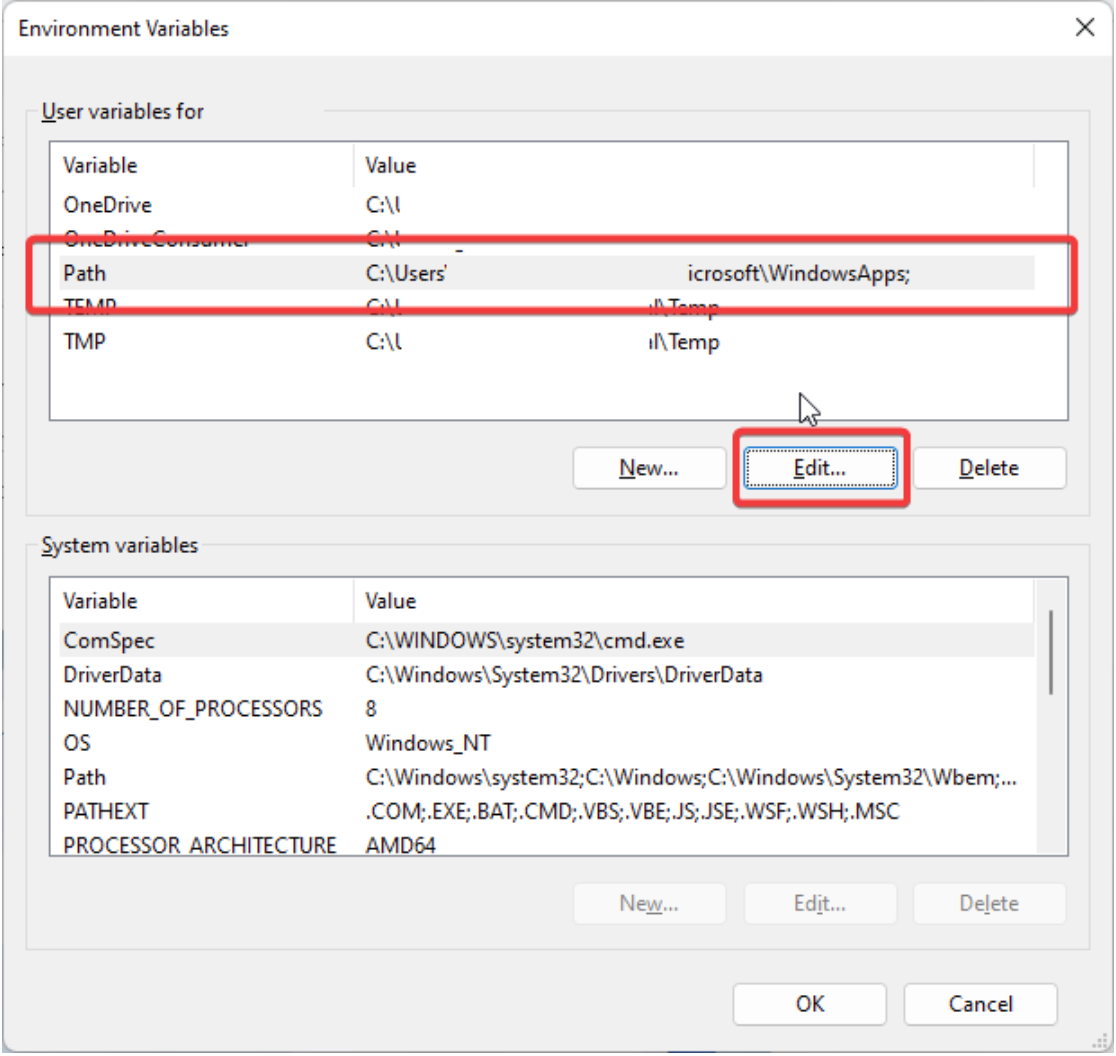
2. On **the Environment variables** window, select **Path** and click **Edit**.
3. You need to enter the commands below one at a time. Click **New** each time to create a new entry.
1. ```
%SystemRoot%\system32
```
2. ```
%SystemRoot%
```
3. ```
%SystemRoot%\System32\Wbem
```
4. ```
%SYSTEMROOT%\System32\WindowsPowerShell\v1.0\
```
5.
4. Open the **Task manager** and end the Dr. Sprinto operations.
5. Now, re-open the Dr. Sprinto app. It should work as expected.
If you still face issues running Dr. Sprinto, repeat Step 1 and send the copied debug report to [Sprinto support](mailto:WWW.support@Sprinto.com). We will investigate the matter and get back to you with a resolution.

 4. Open the **Task manager** and end the Dr. Sprinto operations.
5. Now, re-open the Dr. Sprinto app. It should work as expected.
If you still face issues running Dr. Sprinto, repeat Step 1 and send the copied debug report to [Sprinto support](mailto:WWW.support@Sprinto.com). We will investigate the matter and get back to you with a resolution.
4. Open the **Task manager** and end the Dr. Sprinto operations.
5. Now, re-open the Dr. Sprinto app. It should work as expected.
If you still face issues running Dr. Sprinto, repeat Step 1 and send the copied debug report to [Sprinto support](mailto:WWW.support@Sprinto.com). We will investigate the matter and get back to you with a resolution.