Source: https://atomic-works-test.docs-staging.pageloop.ai/monitors/dr.-sprinto-and-manual-inputs/how-to-resolve-drsprinto-configuration-issue-on-windows-registry
# How To Resolve Drsprinto Configuration Issue On Windows Registry
# How to resolve DrSprinto configuration issue on Windows registry
#### Issue Overview
Sometimes, DrSprinto encounters difficulty running or picking up specific information from a device. This is often attributed to configuration issues specific to the device.
#### Resolution Steps
To address the Windows Registry issue hindering DrSprinto from running or reading your device information, follow these steps:
1. Type gpedit.msc in the Windows Start Search Bar and hit Enter. This opens the Group Policy Editor.
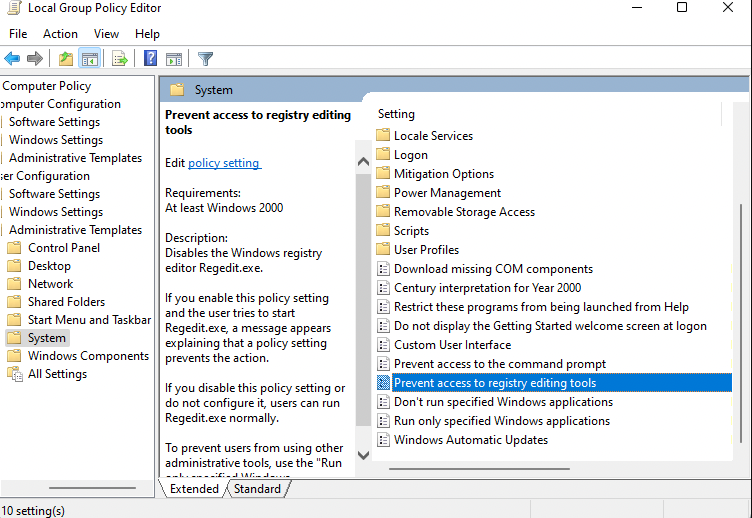
2. Navigate to User Configuration > Administrative Templates > System.
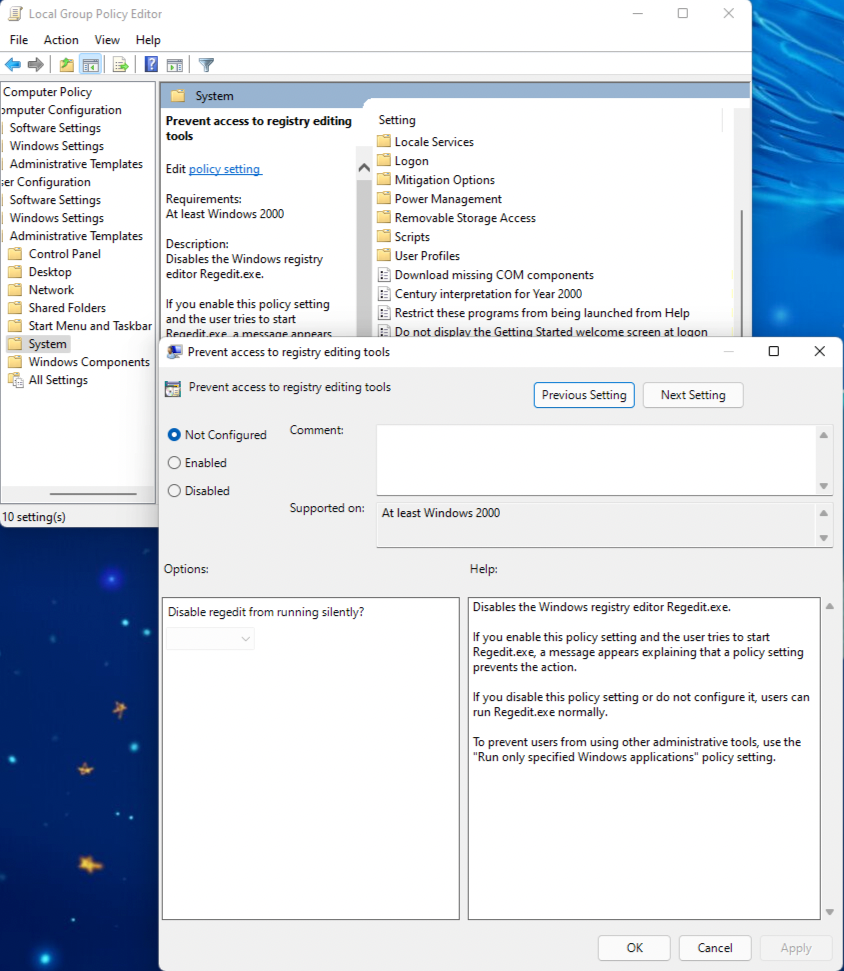
3. Double-click on Prevent Access To Registry Editing Tools setting.
4. Set it to Disabled / Not configured, then click **OK**.
5. After making these changes, try running the DrSprinto app as an Administrator. Right-click on the app and choose the "Run as Admin" option.
#### Further Troubleshooting
If the issue persists, follow these additional steps:
1. Write to support@sprinto.com with your Debug logs.
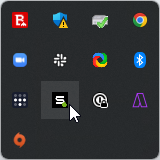
2. Find the Debug log information by navigating to the Icon tray on the right side of the taskbar.
3. Right-click on the Dr.Sprinto Icon.
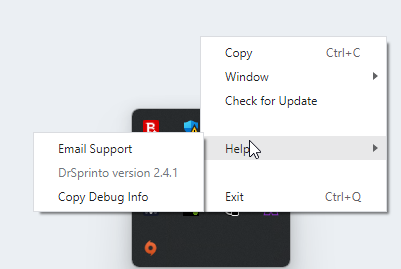
4. Click on Help and then select "Copy Debug Info".
5. This action copies the debug information to your clipboard. Paste this information in the email that you send to [Sprinto support](mailto:www.support@sprinto.com).
These steps should help resolve the Windows Registry issue with DrSprinto. If you continue facing problems, feel free to reach out to our [support team](mailto:www.support@sprinto.com) for further assistance.