Source: https://atomic-works-test.docs-staging.pageloop.ai/monitors/governance-and-compliance-monitors/resolve-sprinto-check-for-product-privacy-page-availability-on-company-products
# Resolve Sprinto Check For Product Privacy Page Availability On Company Products
# Resolve Sprinto Check For Product Privacy Page Availability On Company Products
### About
Sprinto check: Product privacy page should be available
The above Sprinto check fails if any product added on the[ company profile](https://app.sprinto.com/app/admin/companyProfile) page lacks a valid URL for the Privacy policy page.
By default, this check is assigned to the[ Infra Operations Person](https://app.sprinto.com/app/admin/orgStructure/infosecRoles).
### Purpose
This check ensures that all products listed on the[ Company Profile](https://app.sprinto.com/app/admin/companyProfile) page have a valid URL for the Privacy Policy page.
### How to fix
Follow these steps to resolve the pending check:
1. Access Pending Checks
1. Log in to the Sprinto admin portal with your credentials and navigate to Data Library > Dashboard.
2. Select the Tasks tab and find the pending checks under the Company Products category.\
2. Action Pending Checks
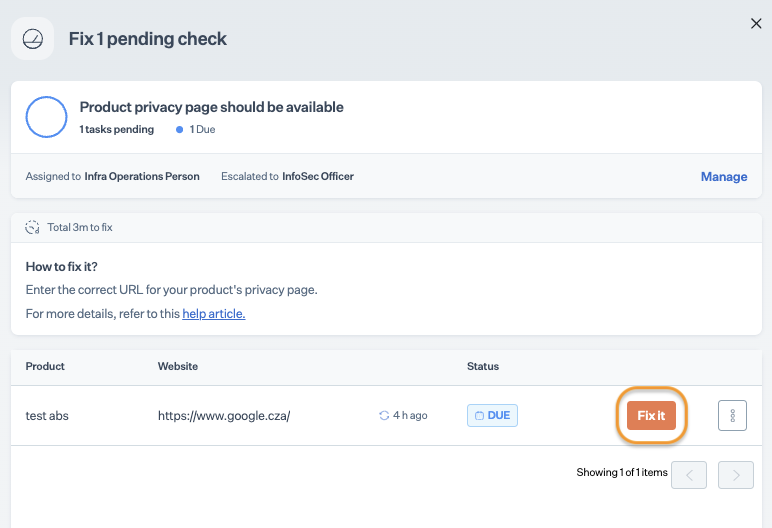
1. Click on the pending check that you need to address.
2. On the check details page, click Fix it next to the product you wish to update.
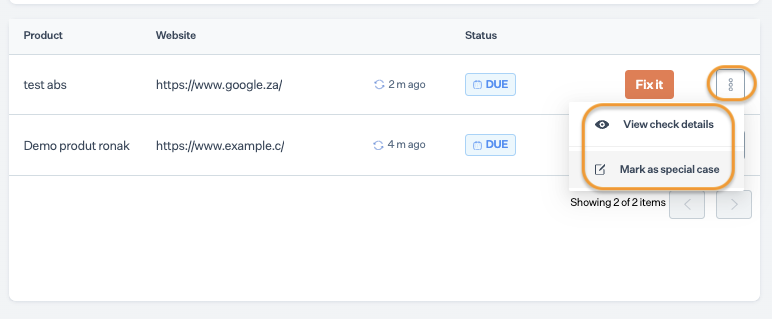
3. If required, you can view detailed check details or mark it as a special case. For more information, refer to[ Mark Sprinto Check as a Special Case](https://sprinto.freshdesk.com/en/support/solutions/articles/72000632095-how-to-mark-a-sprinto-check-as-a-special-case).
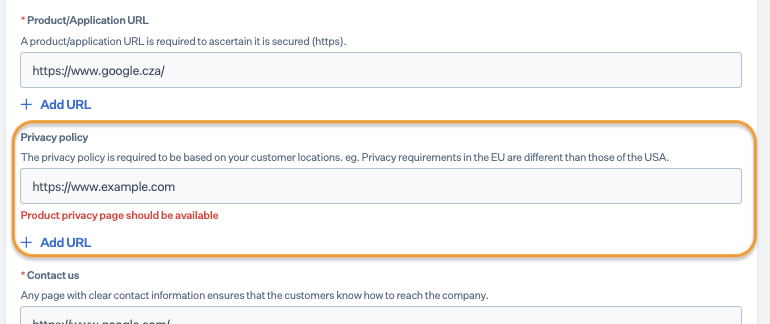
4. On the Product Details page, enter a valid Privacy policy page URL in the respective field, then click Save Changes. Click Add URL for additional URL fields. \
Note: Ensure the URL includes the "http://" or "https://" as a prefix.
5. Sprinto will validate the entered URL and update the check status to "Passing."
### Support
Please get in touch with our [support team](mailto:www.support@sprinto.com) if you have any queries related to the Sprinto check or need any assistance.