Source: https://atomic-works-test.docs-staging.pageloop.ai/monitors/workflow-check-resolution/how-to-enable-and-fix-workflow-checks-on-encryption-key-management

# How To Enable And Fix Workflow Checks On Encryption Key Management

# How to enable and fix workflow checks on encryption key management

### **About** <a href="#about" id="about"></a>

Encrypting stored data provides an additional layer of security, ensuring that information remains protected. Once encrypted, data can only be decrypted using a valid encryption key. Organizations commonly use industry-standard encryption algorithms to generate these keys.

Sprinto introduces workflow checks to help organizations meet compliance requirements for encryption key management:

| Workflow check                                          | Description                                                                                      |
| ------------------------------------------------------- | ------------------------------------------------------------------------------------------------ |
| Encryption/decryption keys should be generated securely | Organizations must maintain a document outlining the usage guidelines for encryption algorithms. |
| Encryption/decryption keys should be stored securely    | Use a standard vault or storage service to store encryption keys securely.                       |
| Encryption/decryption keys should be retired securely   | Retire any encryption keys that expire or are compromised to ensure secure data management.      |

### **Enabling workflow check** <a href="#enabling-workflow-check" id="enabling-workflow-check"></a>

Follow the below procedure to enable workflow check:

1. Log in to Sprinto as administrator.
2. Go to Data Library > Workflow Checks.
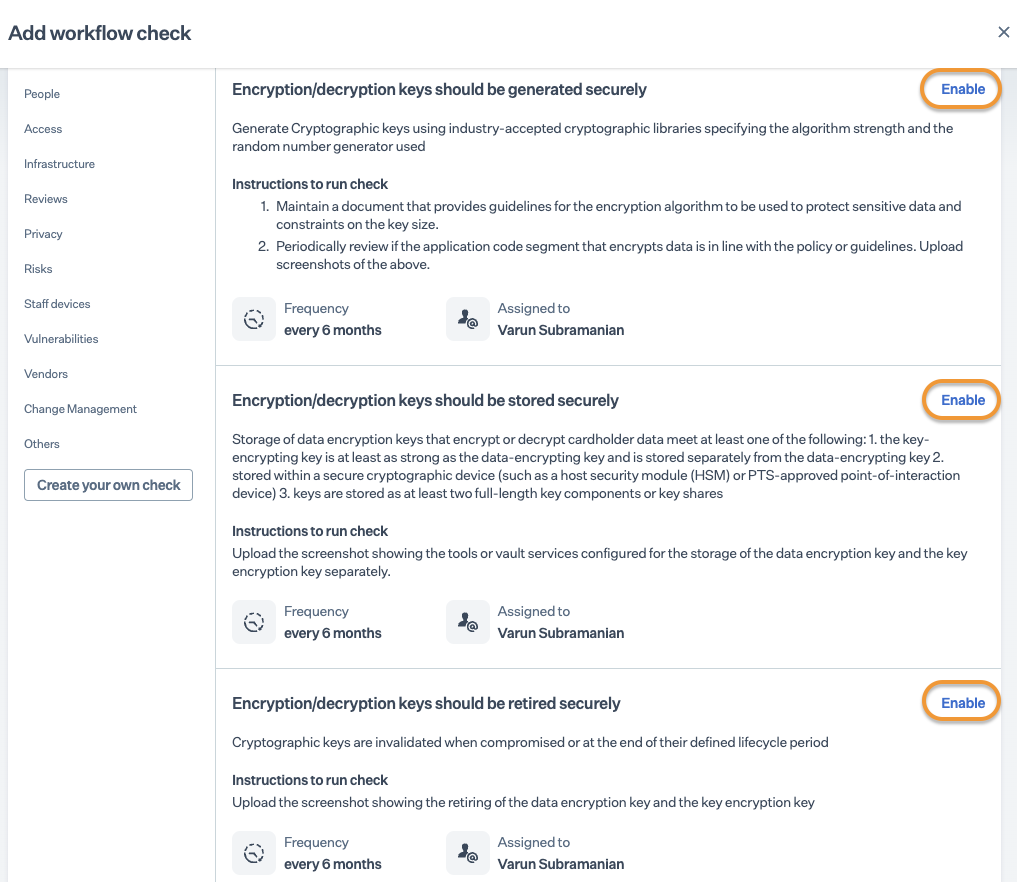
3. Click Create check > Single workflow check.
4.  Click **Enable** next to the workflow you want to enable.

    <figure><img src="https://s3.amazonaws.com/cdn.freshdesk.com/data/helpdesk/attachments/production/72077028583/original/O4DN353FX97O5VHtccAbsNZg5pOKmq0uew.png?1702119670" alt="" width="563"><figcaption></figcaption></figure>
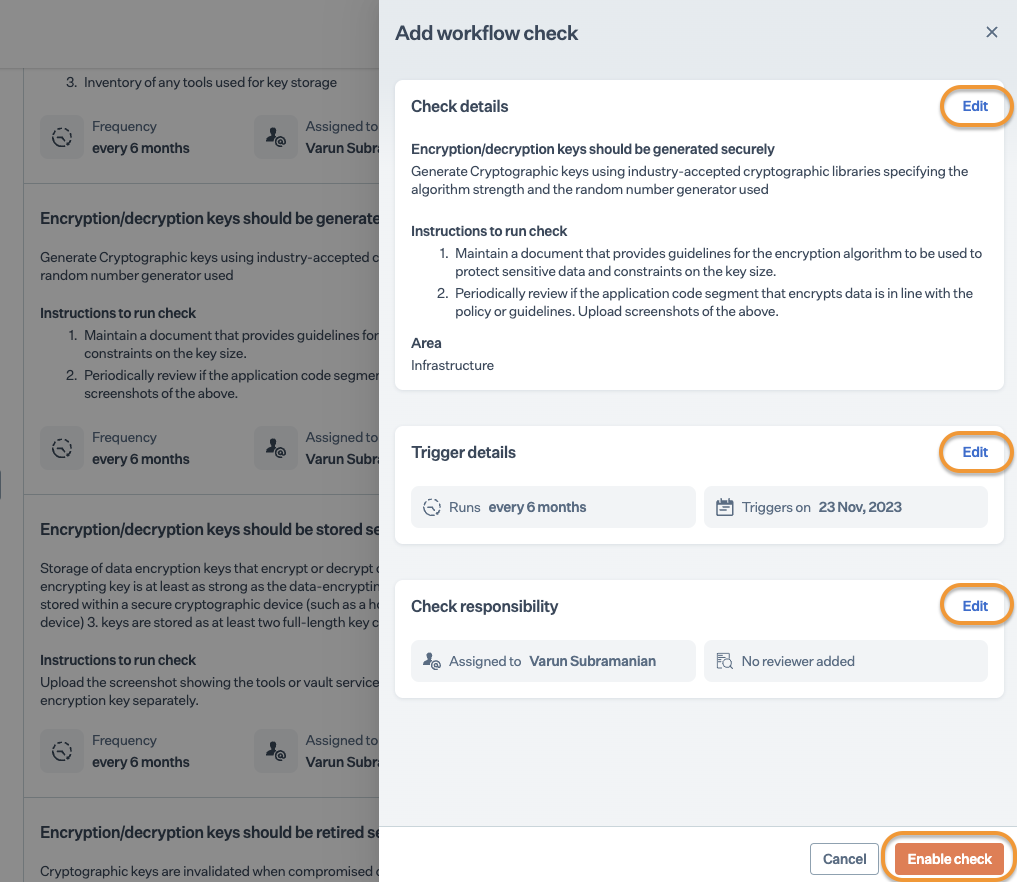
5. If required, click on **Edit** to modify the following details, then click **Enable check**.

* **Check details**: Modify the Title, Description, and Instructions defined for the workflow check.
* **Trigger details**: Modify the next date for activation and regular activation frequency.
*   **Check responsibilities**: Assign the workflow check owner and assign an evidence reviewer if required.

    <figure><img src="https://s3.amazonaws.com/cdn.freshdesk.com/data/helpdesk/attachments/production/72077028589/original/KKS9cXSc4HGjXbnzqeaxz4Ui1lwR86HGFg.png?1702119689" alt="" width="563"><figcaption></figcaption></figure>

### **Fixing workflow check** <a href="#fixing-workflow-check" id="fixing-workflow-check"></a>

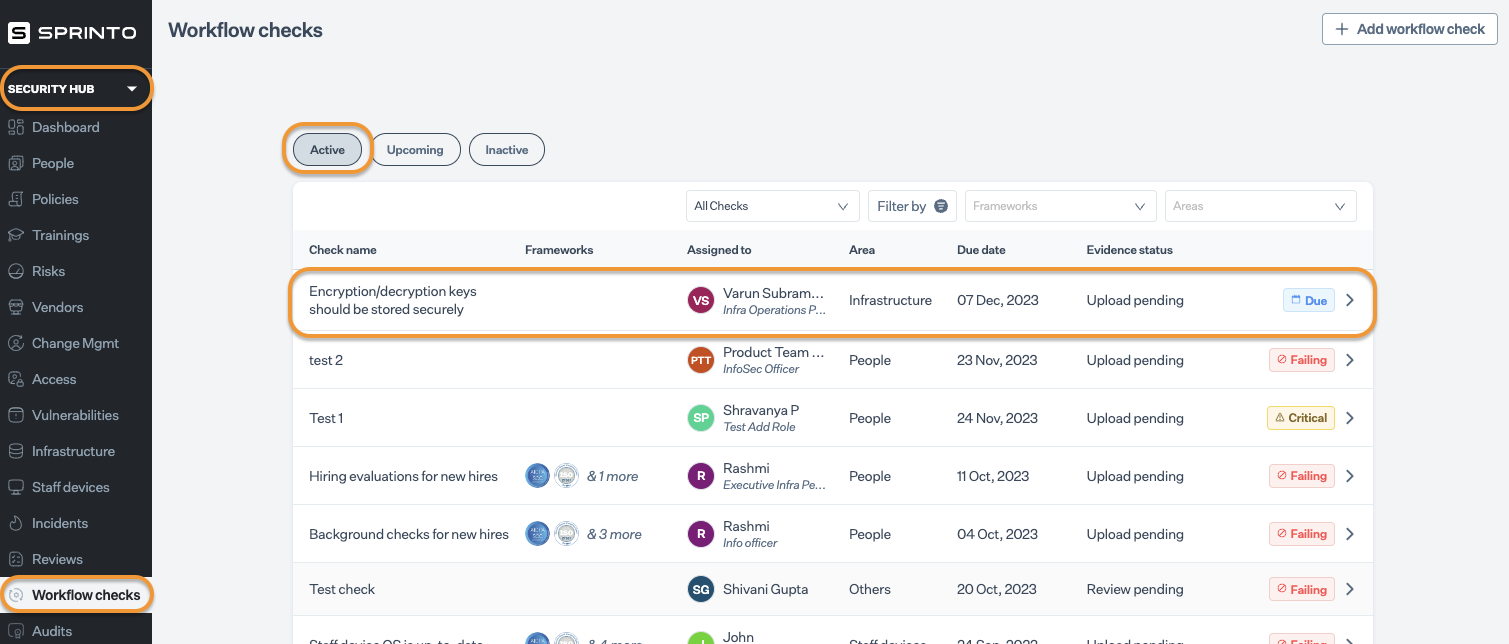
Follow the procedure below to fix the check once the enabled workflow checks are activated (Due/ Critical/ Failing).

1. Log in to Sprinto as administrator.
2.  Go to **Data Library** > **Workflow check**.

    <figure><img src="https://s3.amazonaws.com/cdn.freshdesk.com/data/helpdesk/attachments/production/72077028608/original/APqrYsUSeRvzix5rHOYlprWEimzC9mGsuQ.png?1702119720" alt="" width="563"><figcaption></figcaption></figure>
3. Choose the workflow check, and click **Upload evidence**.
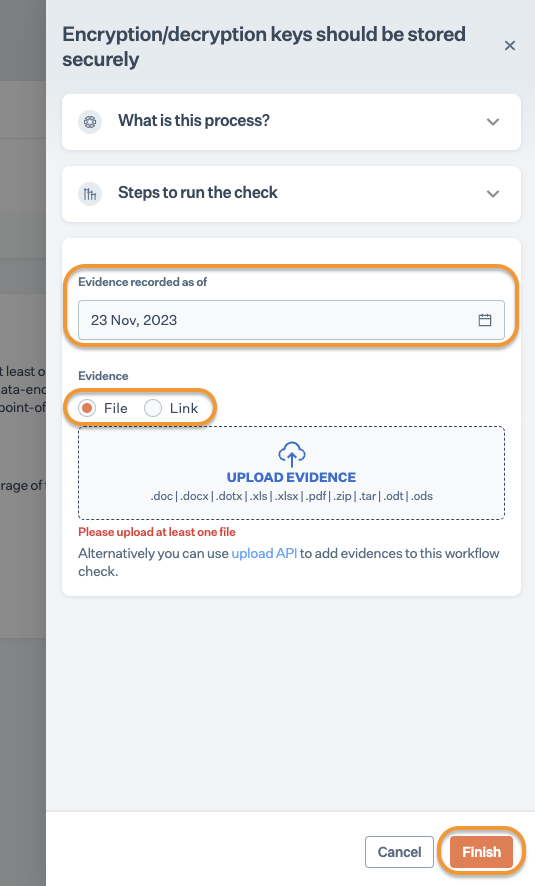
4. Select the evidence record date and choose one of the following options to add evidence.

* **File**: Upload the file from your computer.
* **Link**: Provide a link for the cloud-stored evidence file.

Following are the evidence types to upload based on the activated workflow check.

<table><thead><tr><th width="240.33203125">Workflow check</th><th>Evidence</th></tr></thead><tbody><tr><td>Encryption/decryption keys should be generated securely</td><td>Upload an encryption document defining guidelines for using the encryption algorithm. Periodically review to ensure alignment with guidelines.</td></tr><tr><td>Encryption/decryption keys should be stored securely</td><td>Upload a screen capture showing the tools or vault service used to store the data encryption key.</td></tr><tr><td>Encryption/decryption keys should be retired securely</td><td>Upload a screenshot showcasing the retired encryption keys.</td></tr></tbody></table>

&#x20;   5\. Click **Finish; i**f an evidence reviewer is configured, they will review the uploaded evidence against the check.

<figure><img src="https://s3.amazonaws.com/cdn.freshdesk.com/data/helpdesk/attachments/production/72077028634/original/TTMRdWq-MOPGsP31cXupEwNSH8os94-d4g.png?1702119743" alt="" width="375"><figcaption></figcaption></figure>