
MCP Store
Jira MCP Server
Jira MCP server
Connect the Jira MCP server
Learn how to connect the Jira MCP server to Atomicwork and configure access to Jira tools.
Integrate the Jira MCP server with Atomicwork to give your AI Coworkers access to a wide range of Jira actions, from managing issues and projects to parsing JQL and handling service management tasks.
Review prerequisites
To connect the Jira MCP server, you need the following permissions:
- Atomicwork admin access: You need organization admin access in Atomicwork.
- Jira admin access: You need admin access in Jira to authorize the OAuth flow.
Connect the Jira MCP server
Follow these steps to set up the integration:
- Navigate to Settings > MCP Store > Jira.
- Click on the Jira tile and select Connect.
- During the OAuth authorization flow, uncheck Confluence and Compass. Atomicwork currently only supports the Jira MCP server.
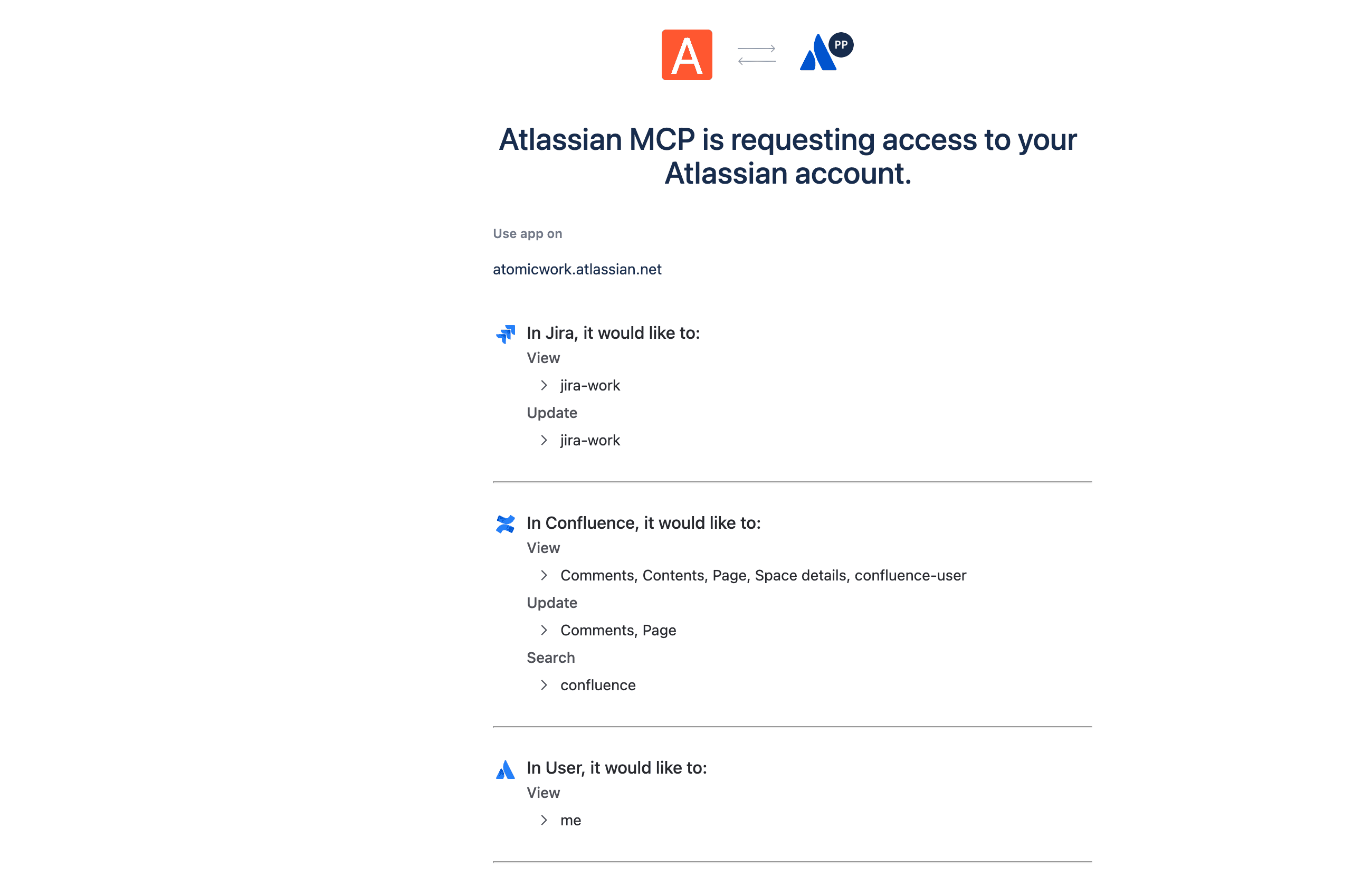
- Switch to your Atlassian account, navigate to Rovo MCP server settings and add this domain: https://esd.atomicwork.com/api/external-oauth/public/install